In part 3 of this series, let's dive a little deeper into systems security. In other words, how to protect your Windows 11 system hard drive. If you don't do it yourself, it's better to understand it by the foreign name and picture.
Because if somehow your computer or laptop is lost, you will have less need to worry about your personal or business secrets. After many years, Microsoft managed to introduce this encryption function to Windows, starting with Windows 10.
Hard disk encryption on Windows ...
Attention! If you have a wireless keyboard (wireless keyboard), check that it is connected immediately when the computer is turned on before the system starts! Or use a wired keyboard and keep it nearby.
You can enable it on all hard drives connected to your system by the following sequence.
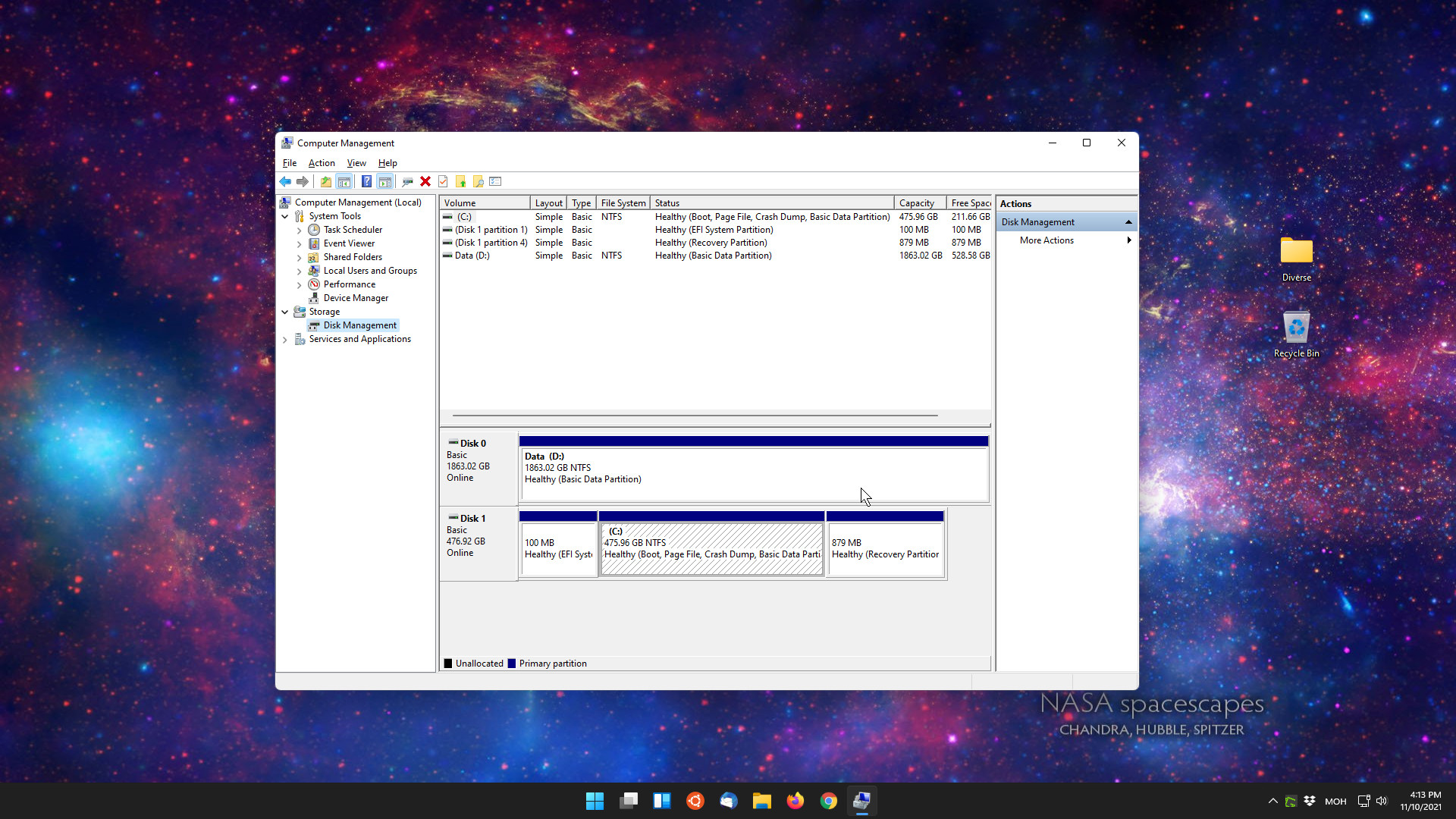
- Check the size of your hard drive in computer management
- If you install 2 or more systems on your computer, it is better to partition your hard disk before activating it
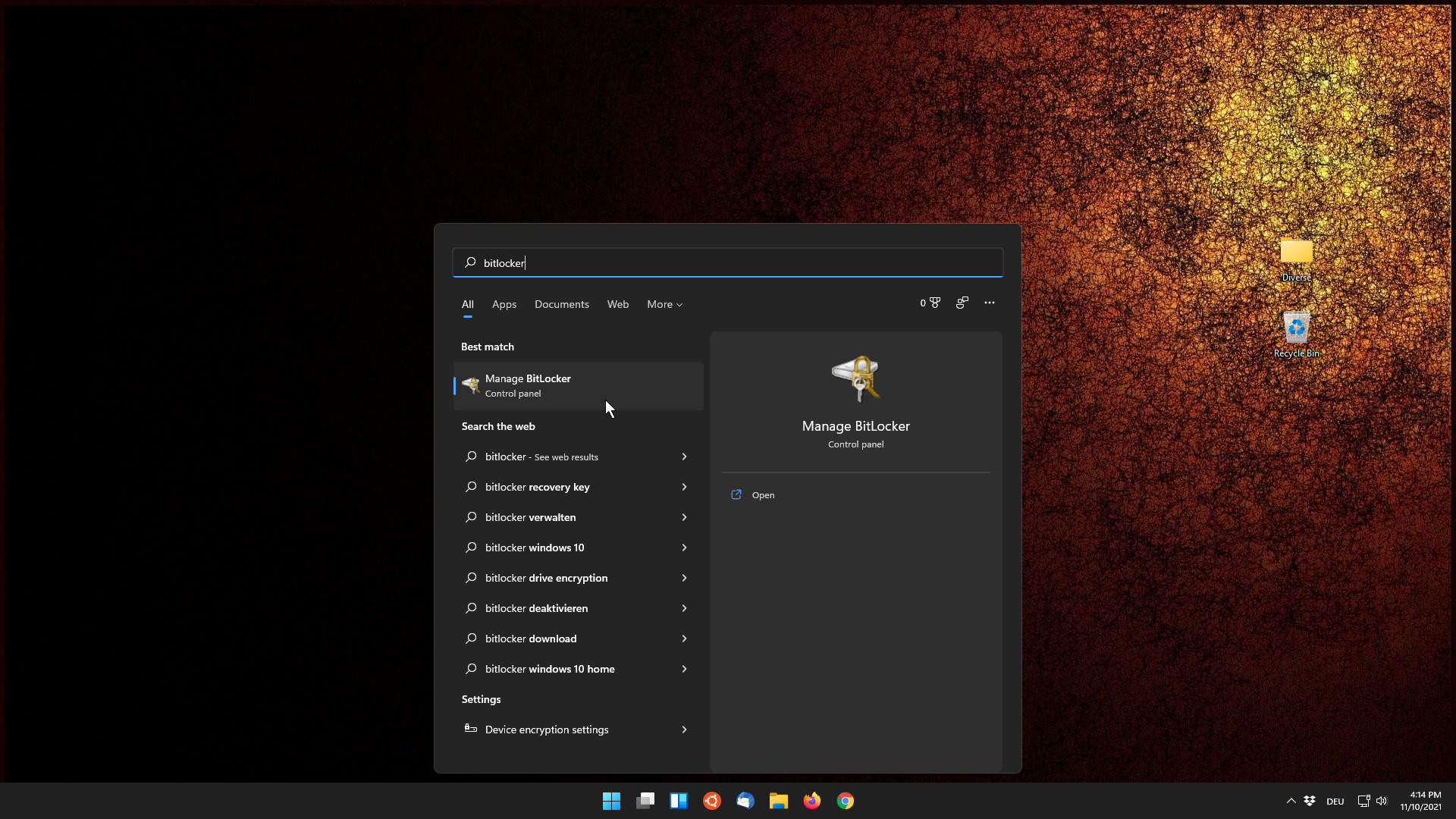
- Start bitlocker
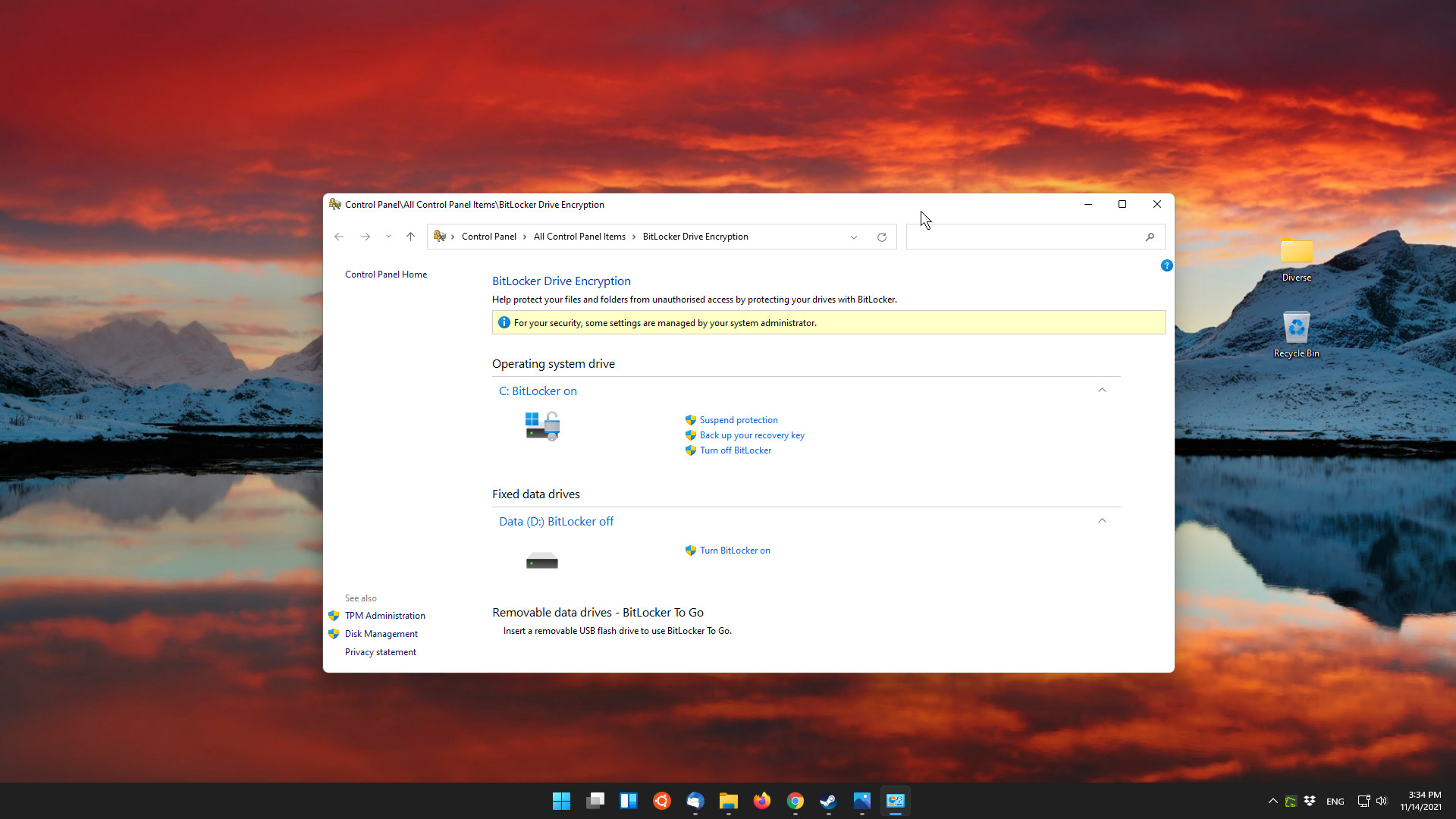
- Turn bitlocker on
- In Windows 11, the password can be entered separately, in Windows 10, a new password was entered during activation
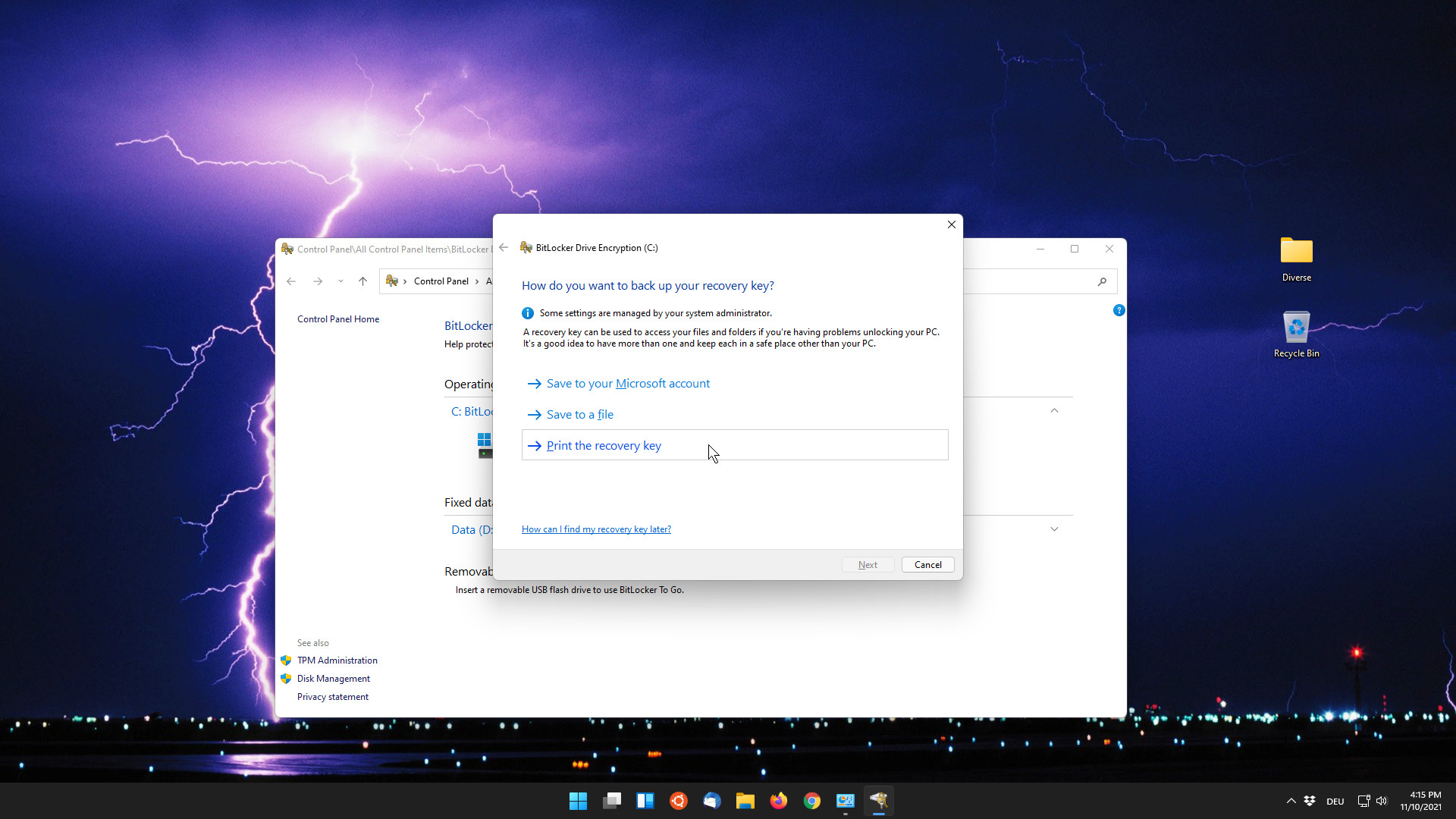
- Write down, save and print your recovery key
- This key is very important to restore your system when you forget your password
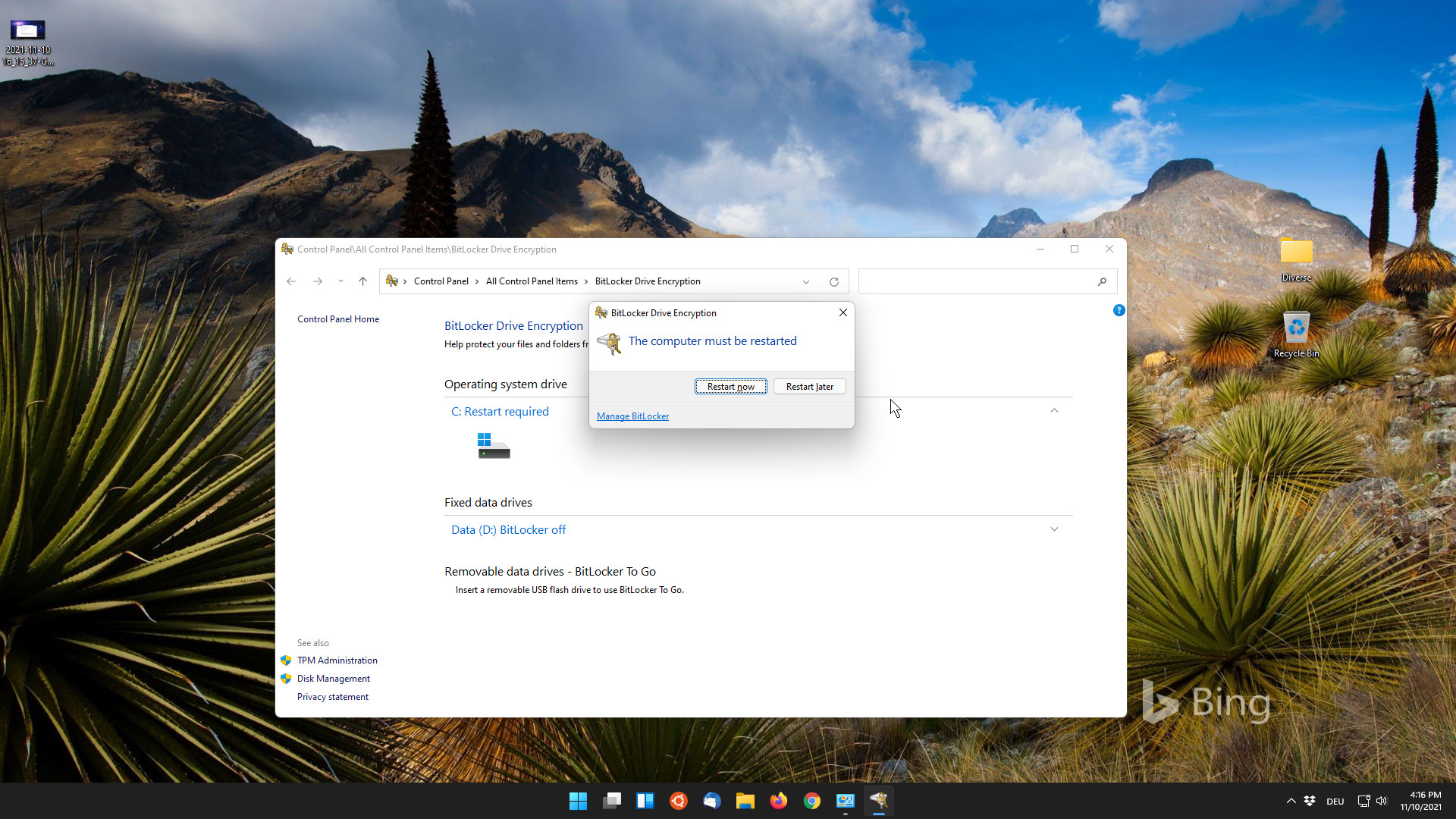
- Reboot the system
- Encryption will start after system restart. Or, as in the first part, you can go in and check where it is going
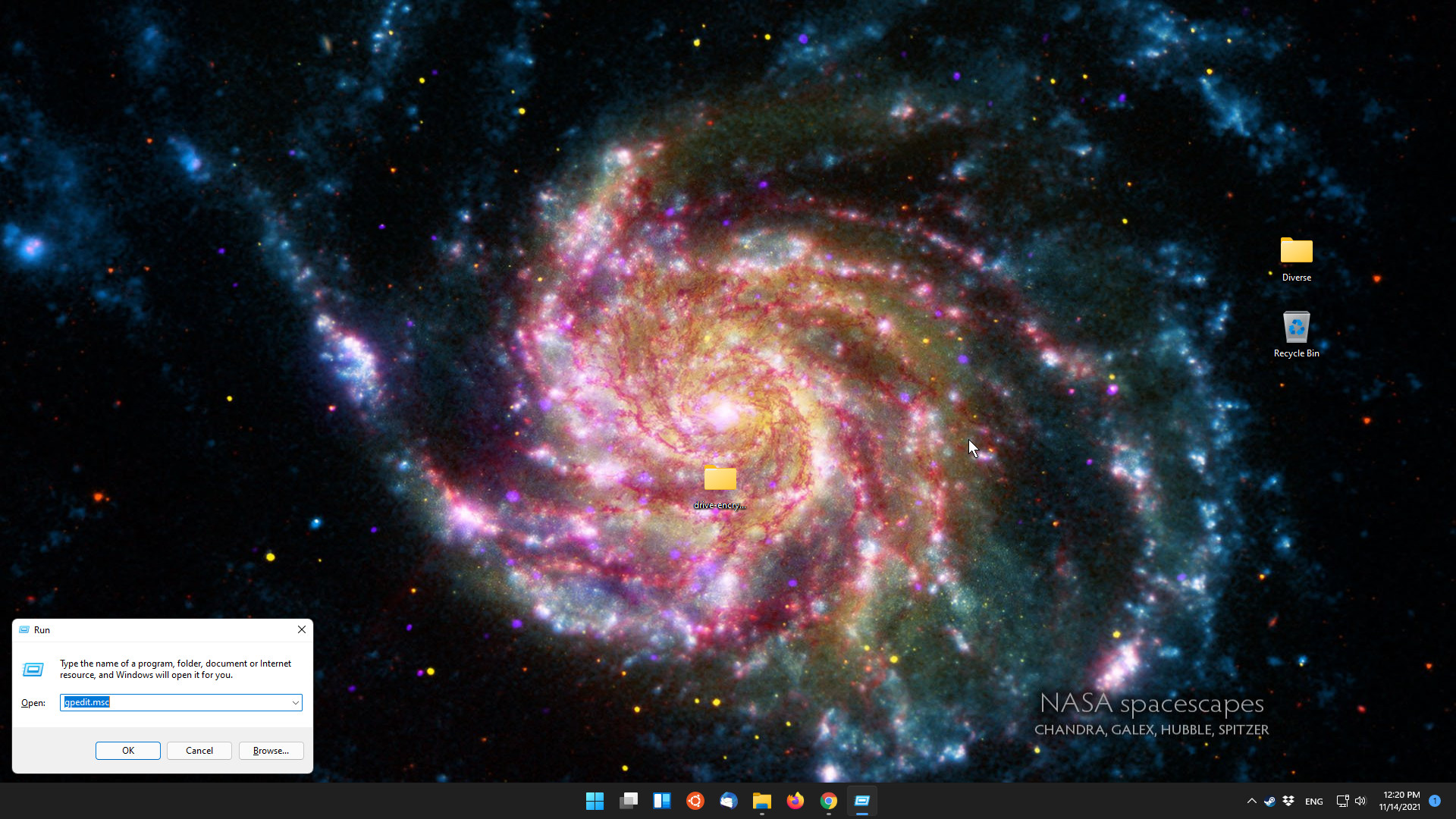
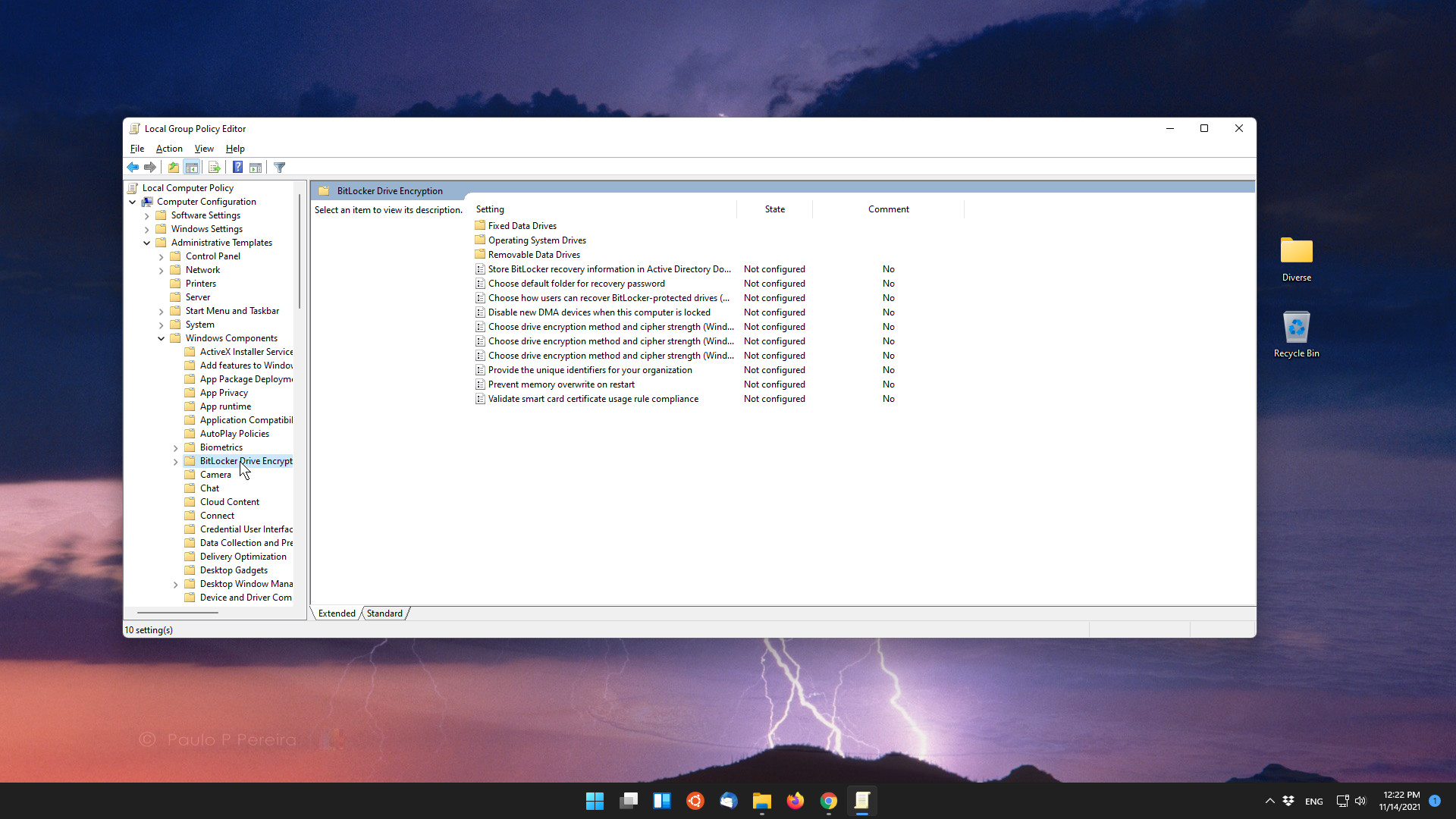
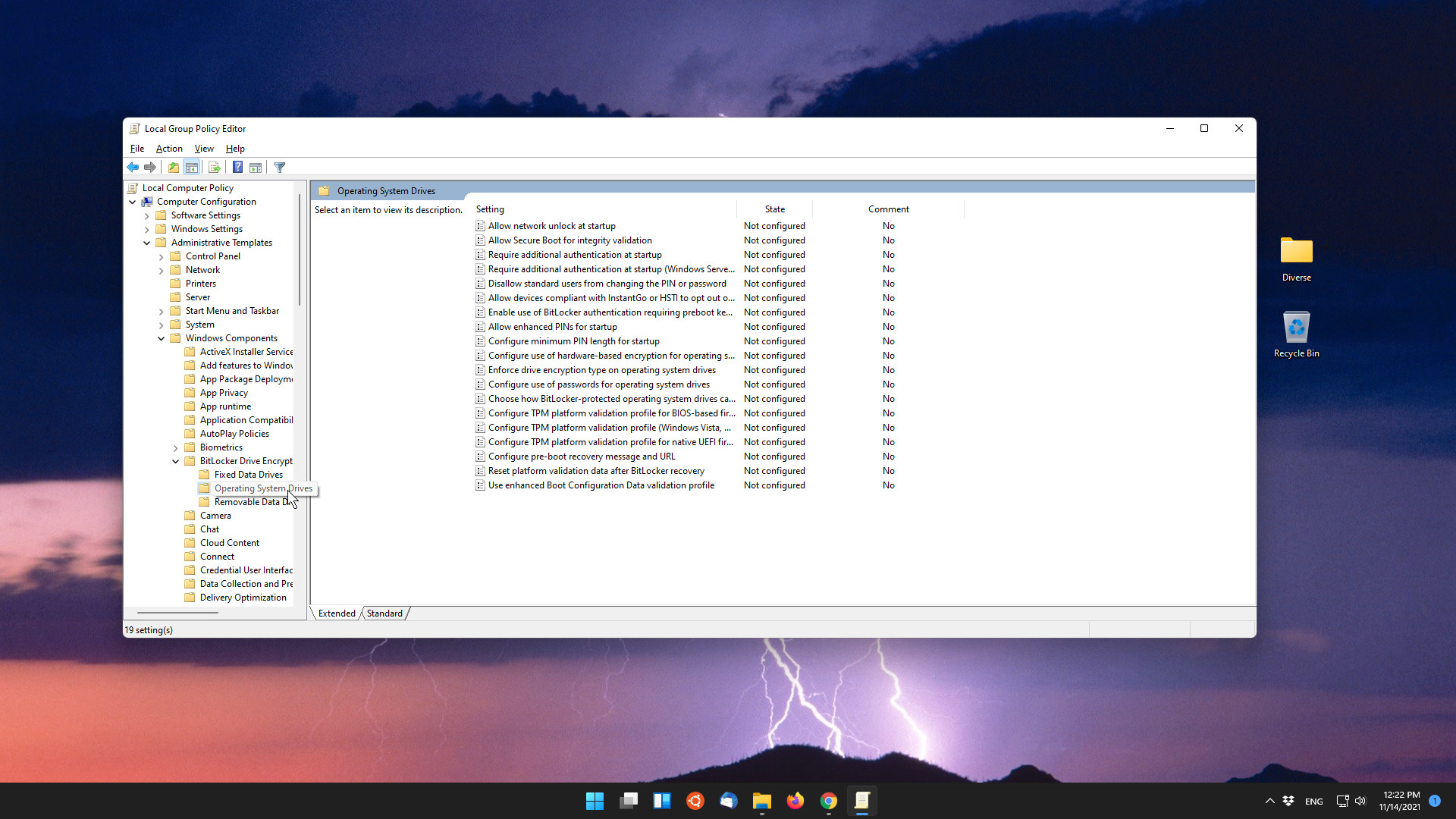
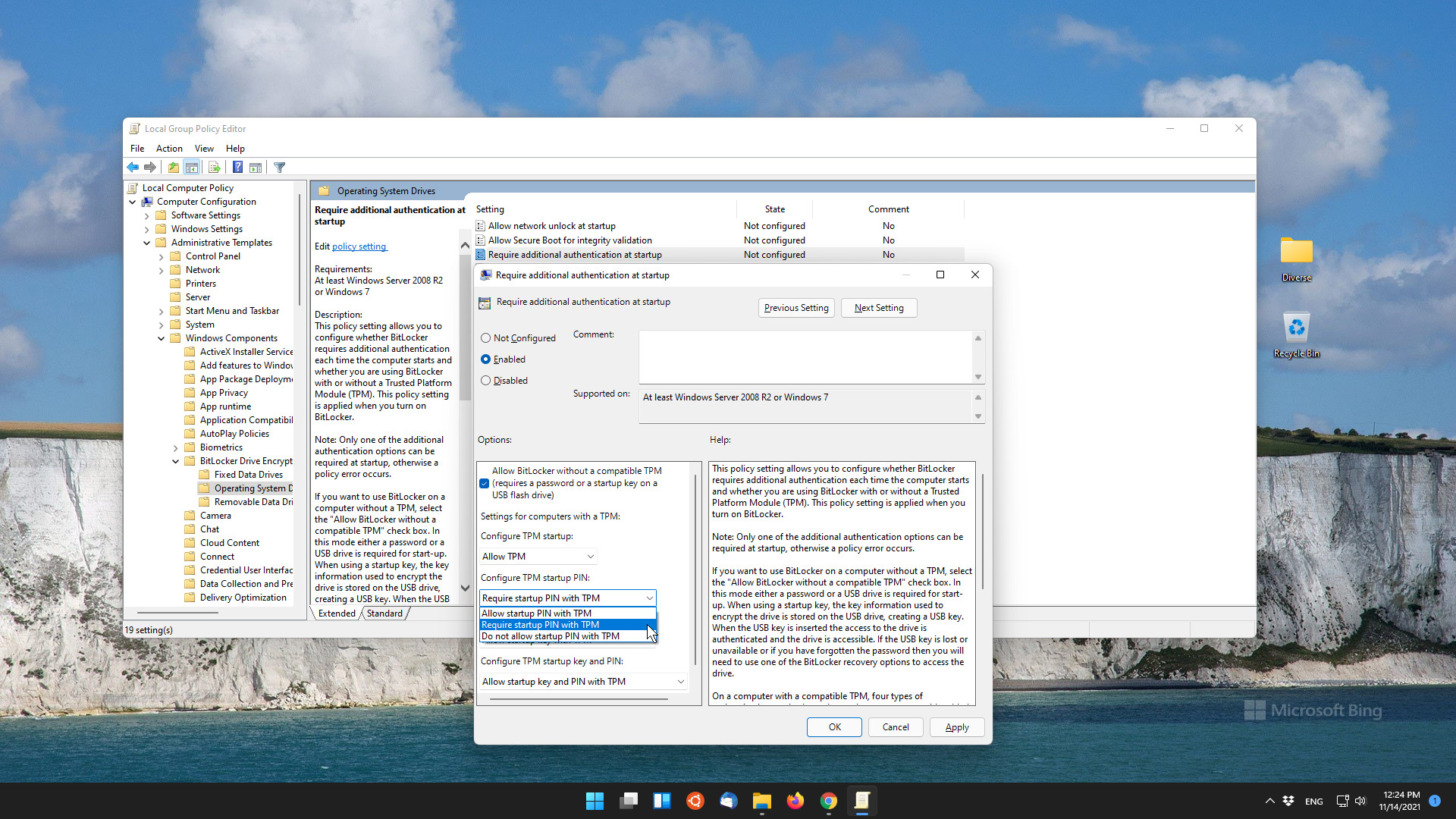
- Enable password criteria at system startup
- Windows 11 only
- Enter Bitlocker password
- Windows 11 only
- In my opinion, the best password is the password itself. But not having to use too easy passwords like 1234 or passphrase will make it easier to hack again.
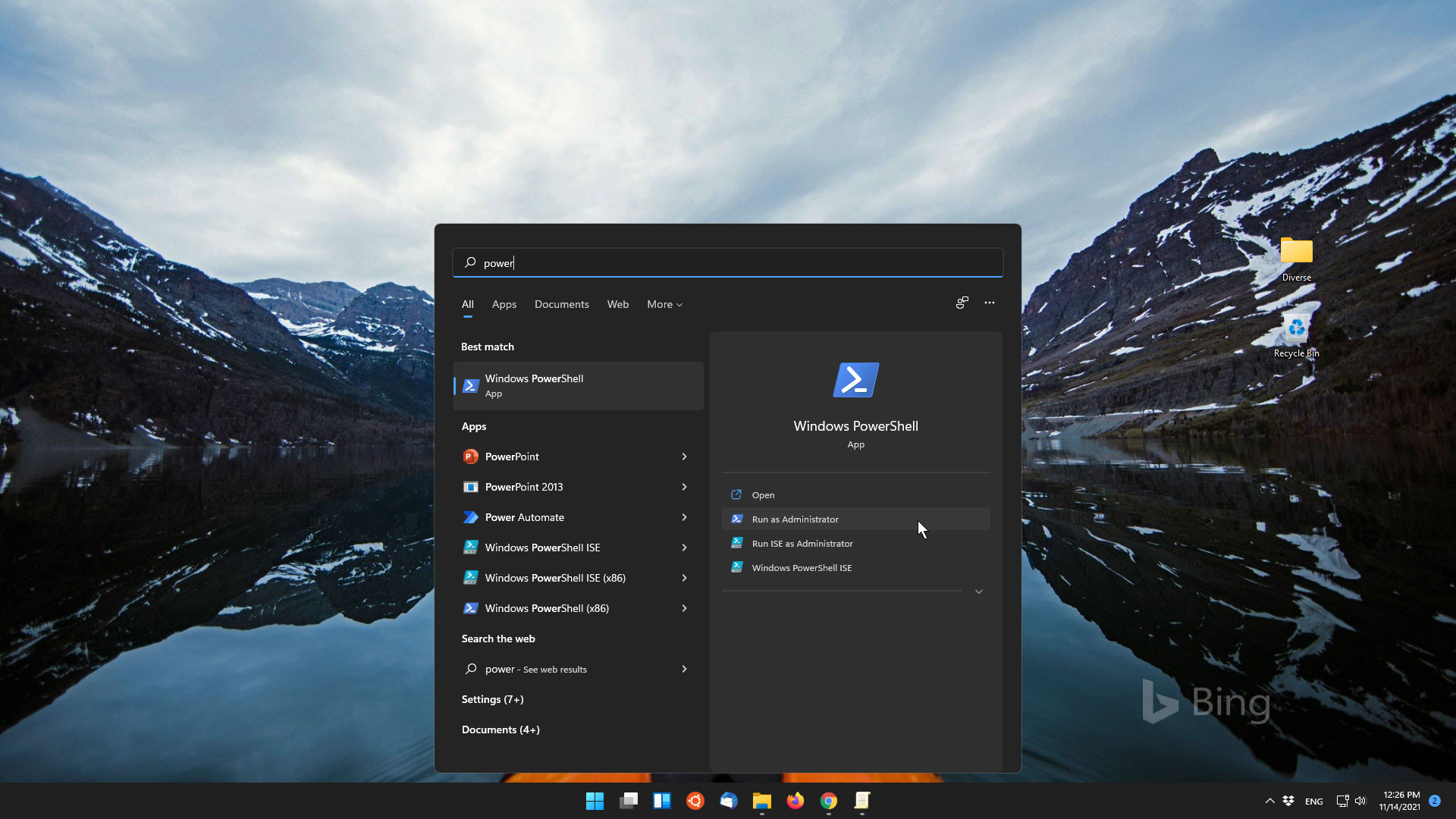
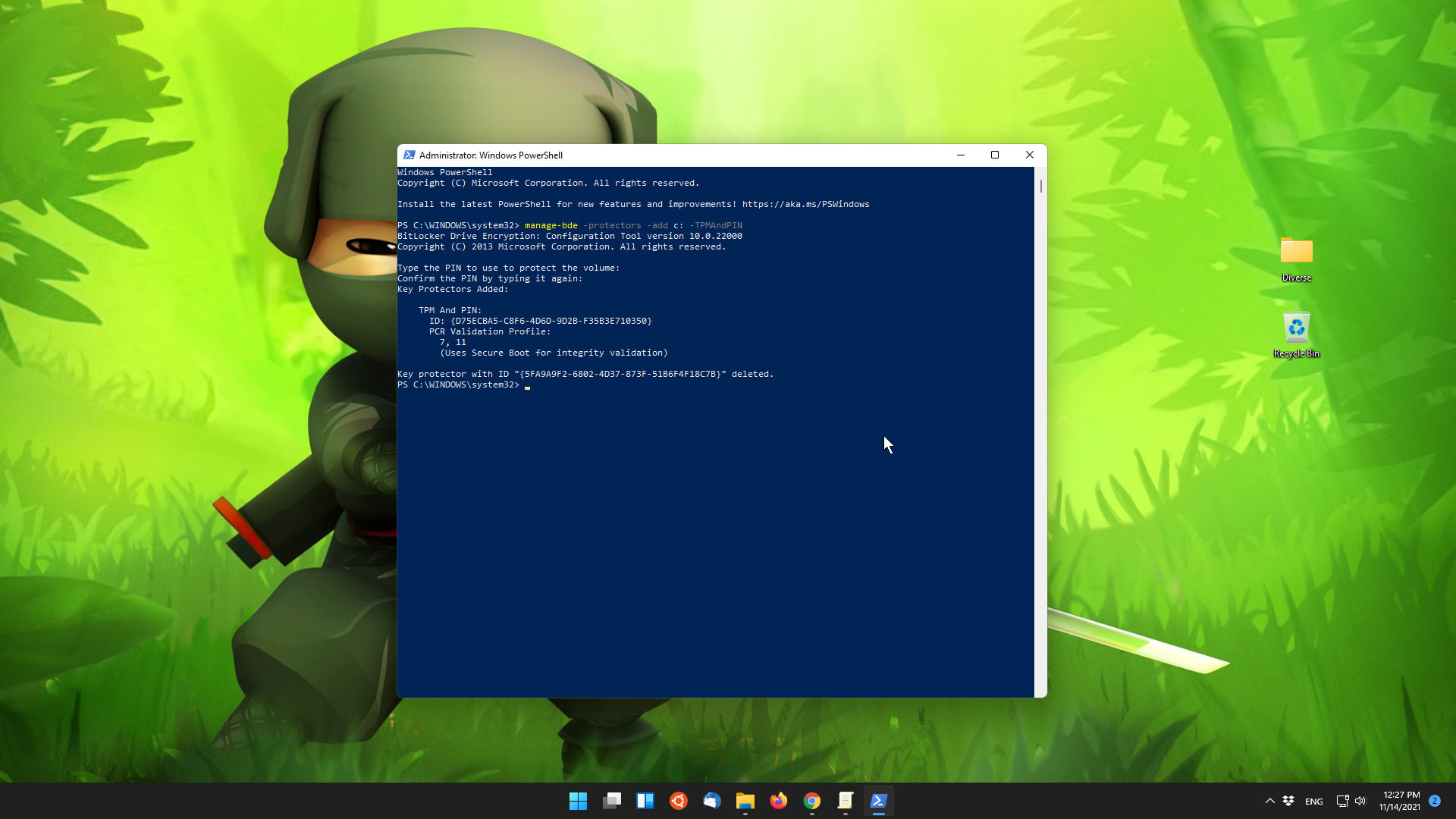
- Start Powershell or CMD with the following command as shown in the picture and enter the new password twice. If successful, it will look exactly like the picture. I forgot to change the drive letter to the one that matches the year of the system. System always has c:.
manage-bde -protectors -add c: -TPMAndPIN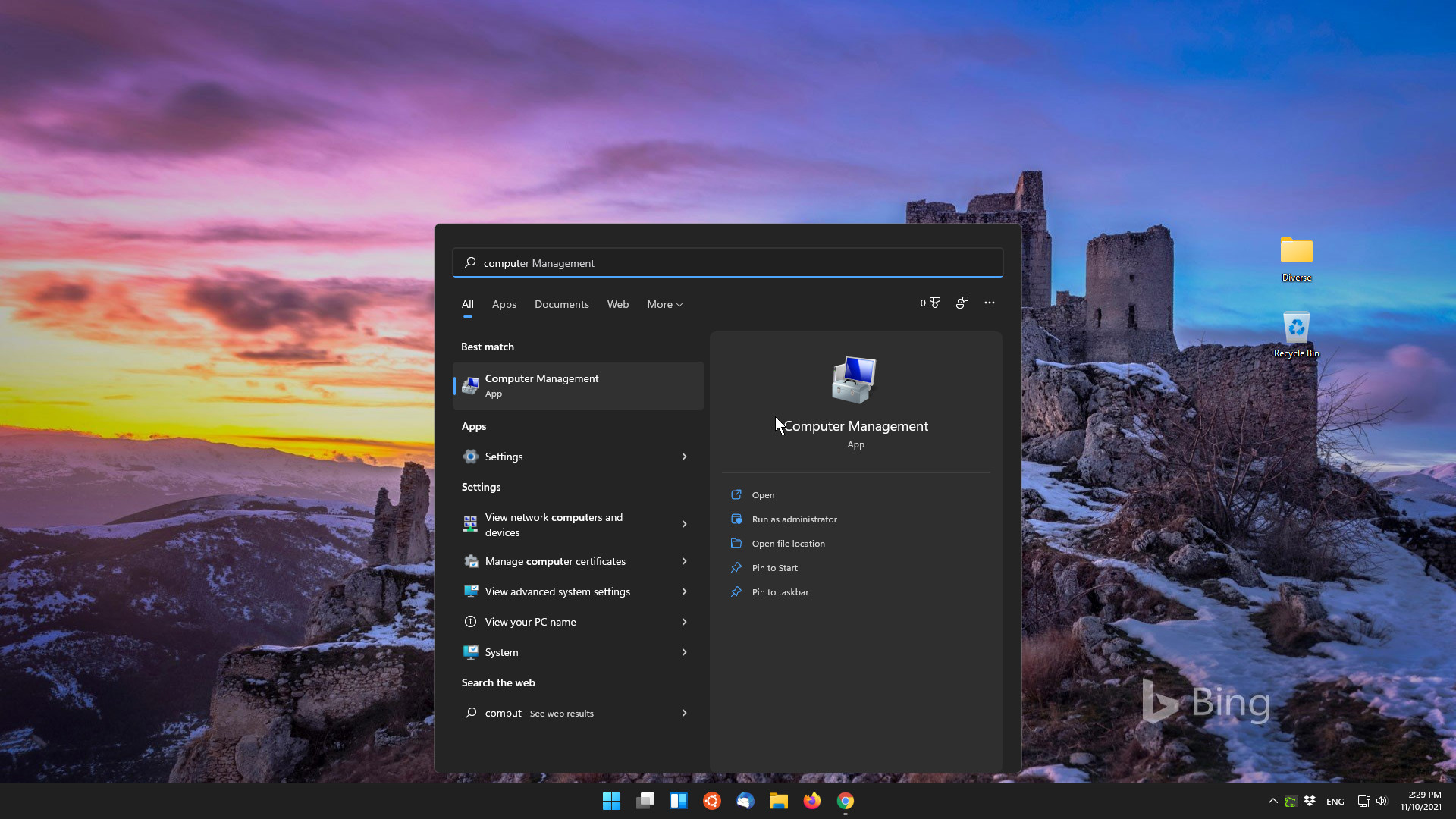
Conclusion
Thus, we have learned some basic ways to protect your personal data from third parties in any case. It's fine when you've learned to use it, or even if you use similar technology, protecting yourself and other people's data in the simplest way is everyone's right and responsibility in the environment. In the next article, I will write how to install Windows and Linux 2 on one computer (dual boot system).