Good day! Let's expand a little on the topic I started yesterday. In other words, let's try to explain easily with pictures how to create an encrypted carrier that can be carried everywhere. I am in itVeraCryptIt uses a free program.
How to install and start using immediately?
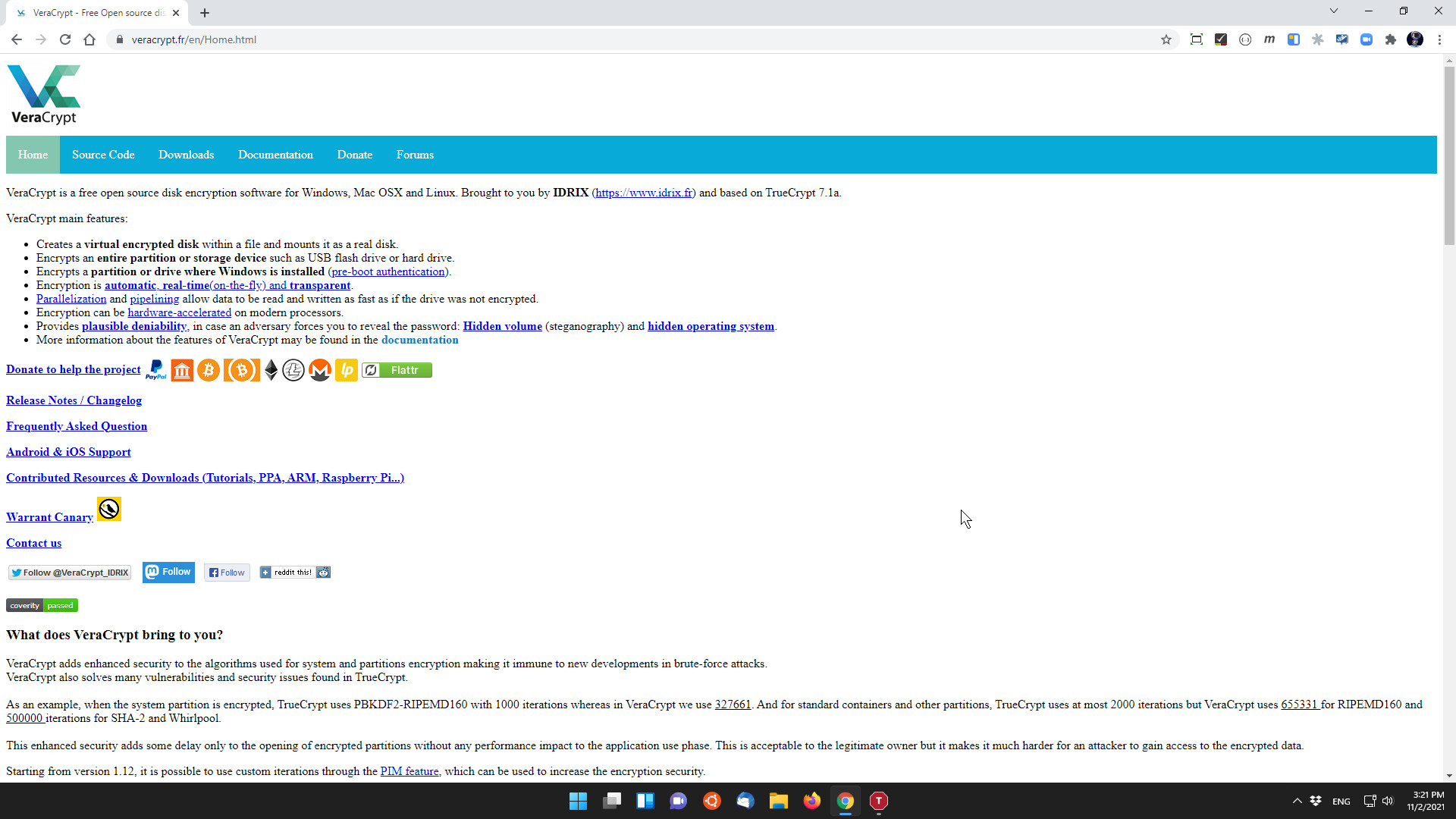
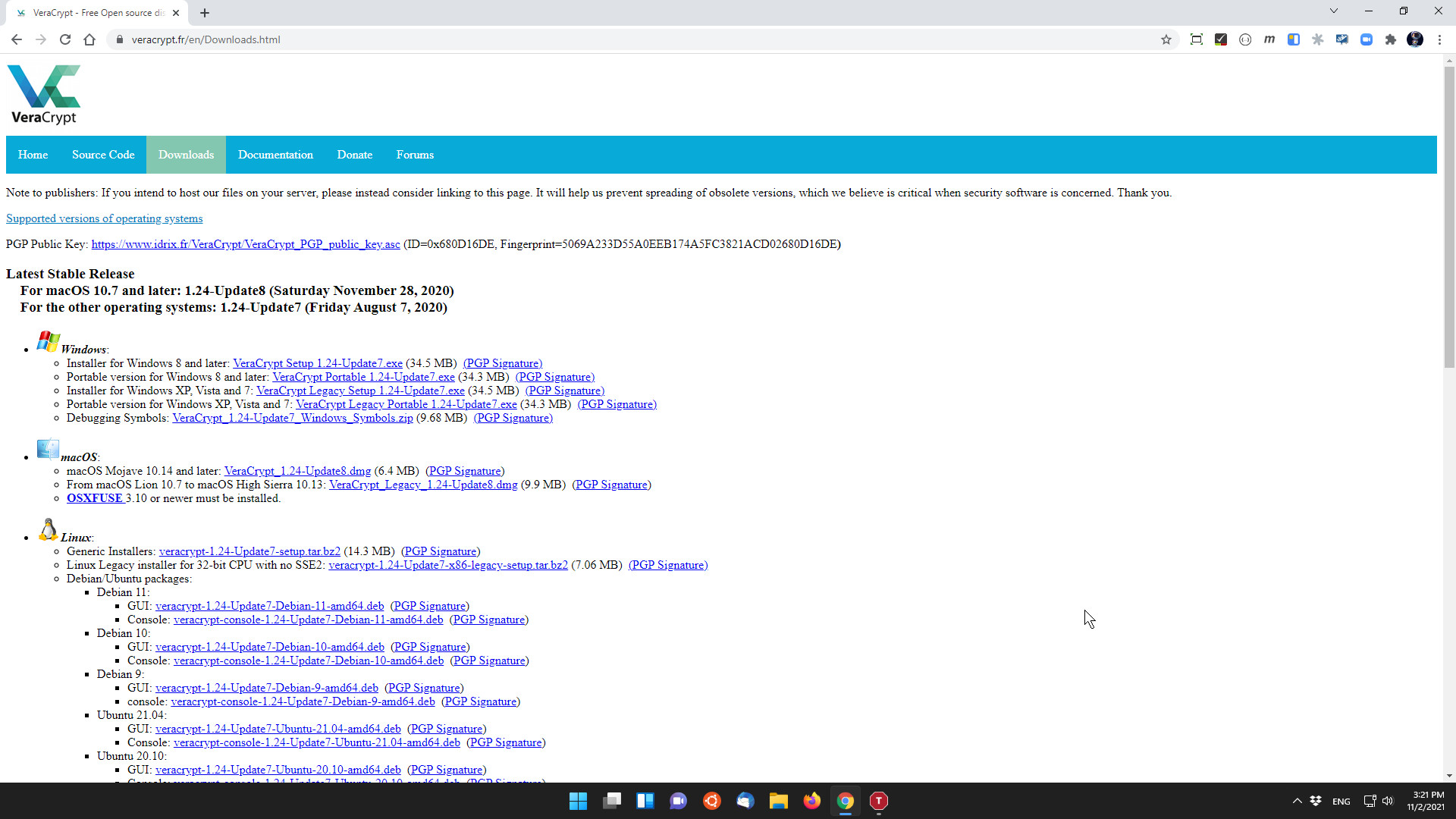
- Download the installer according to your system
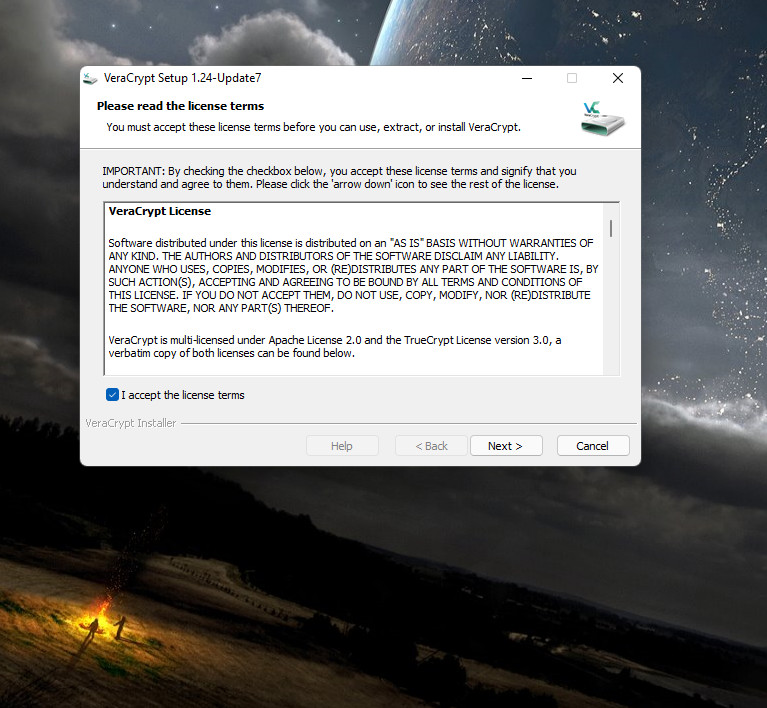
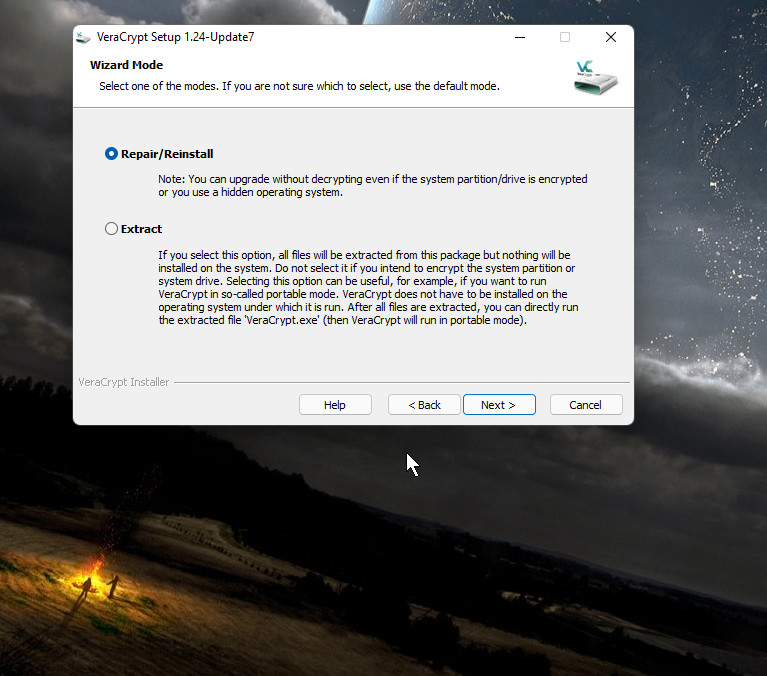
- Start the installation and accept the License
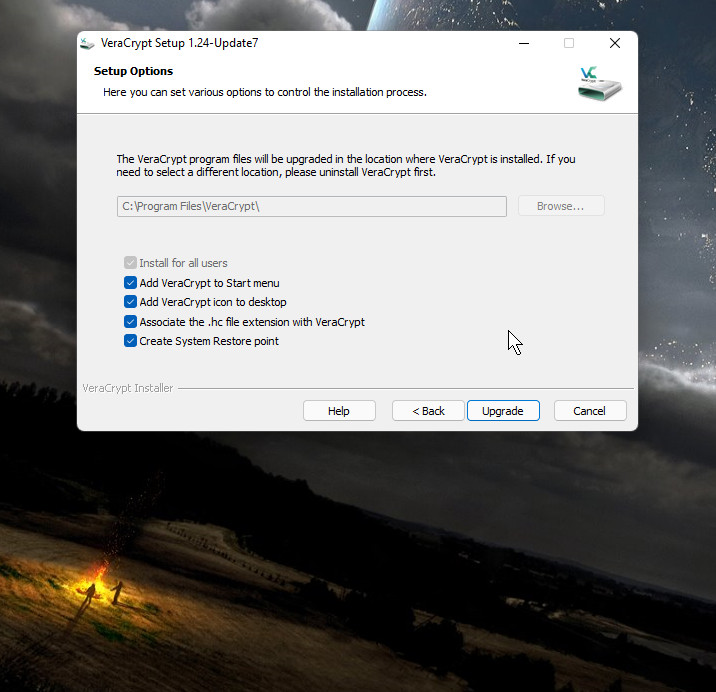
- Select the installation folder
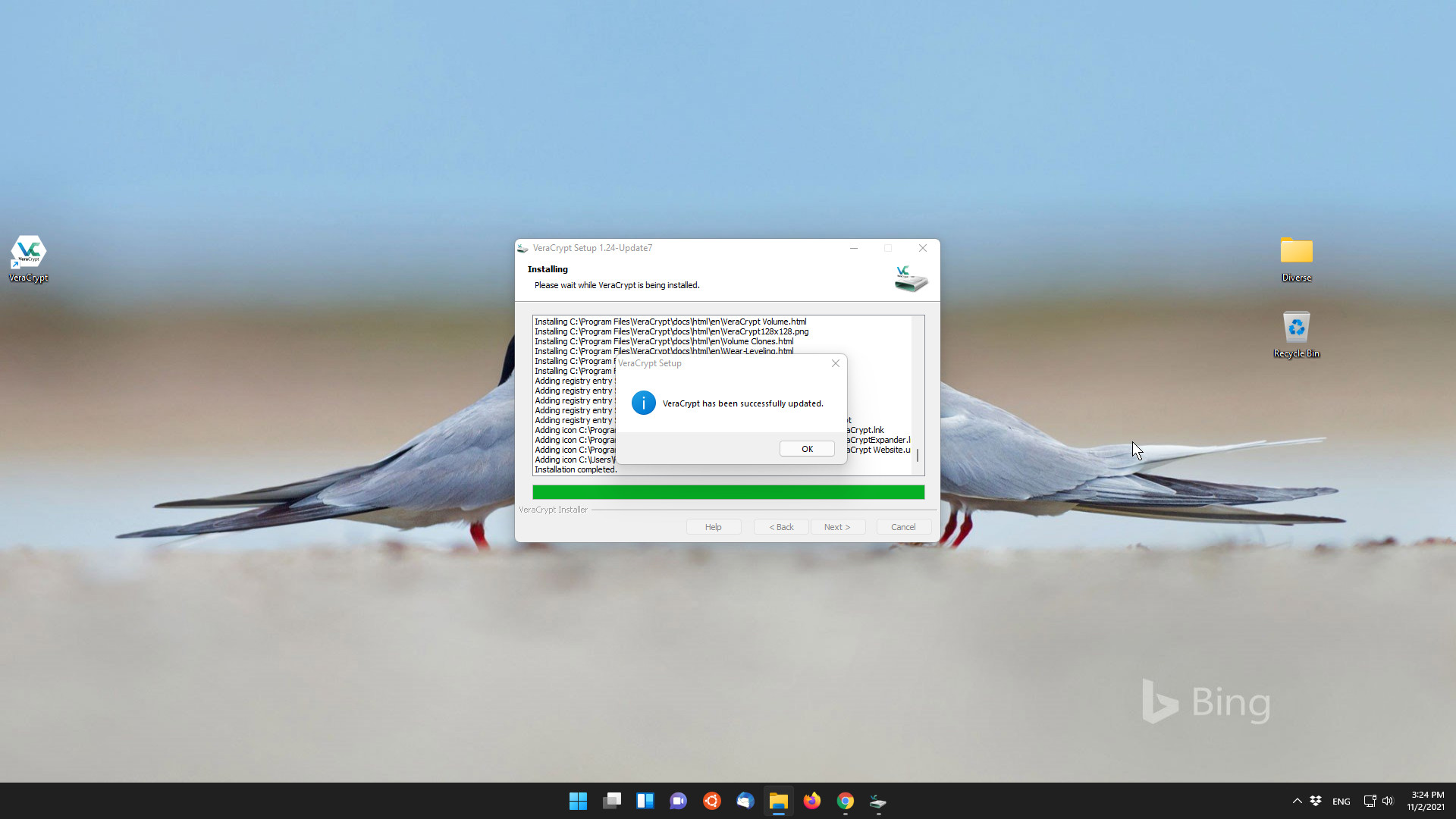
- Installation
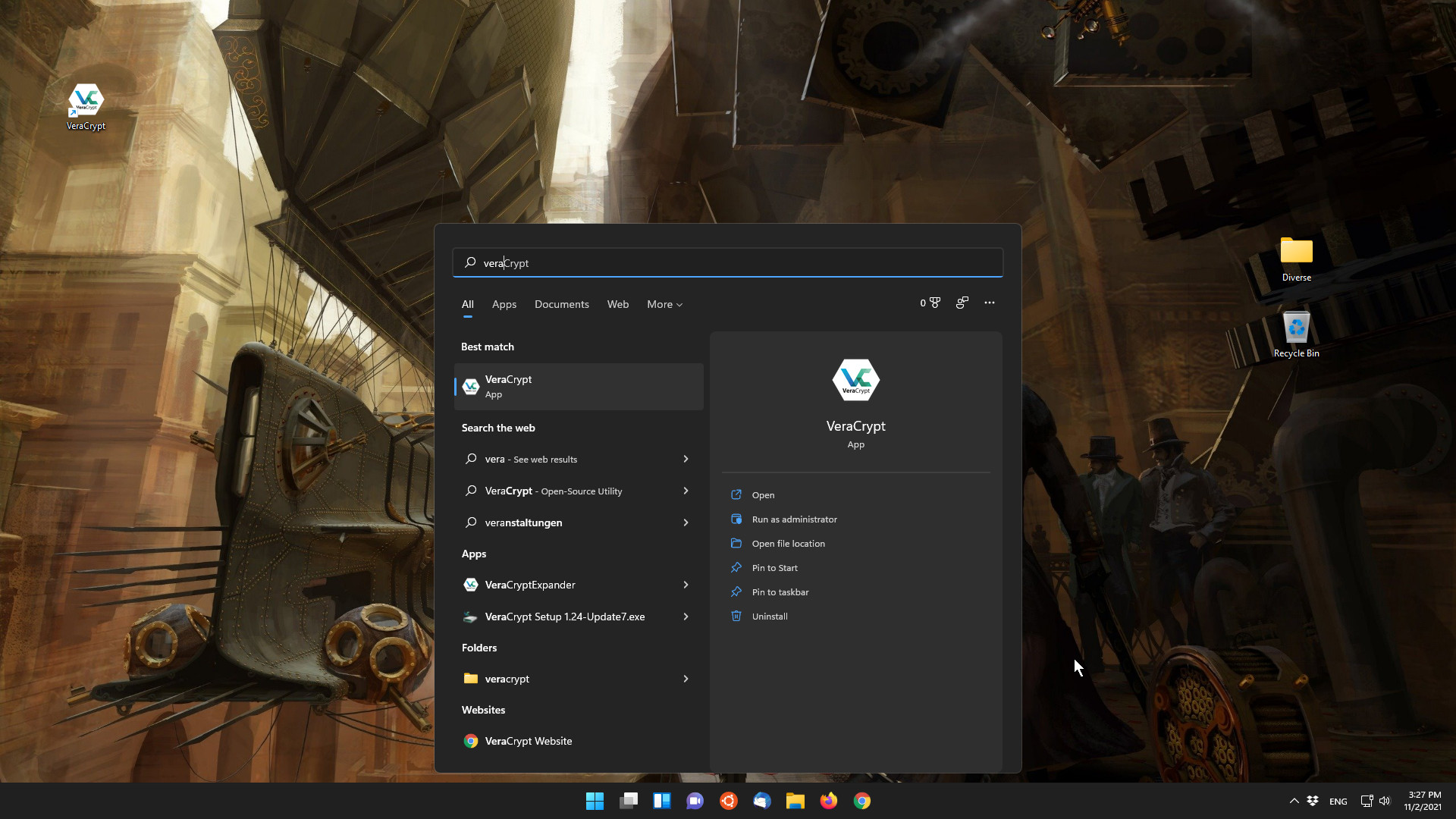
- Start on Windows 11
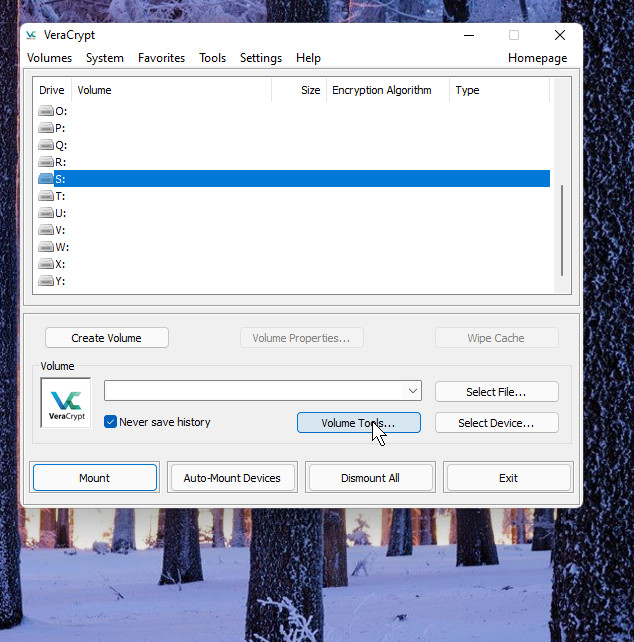
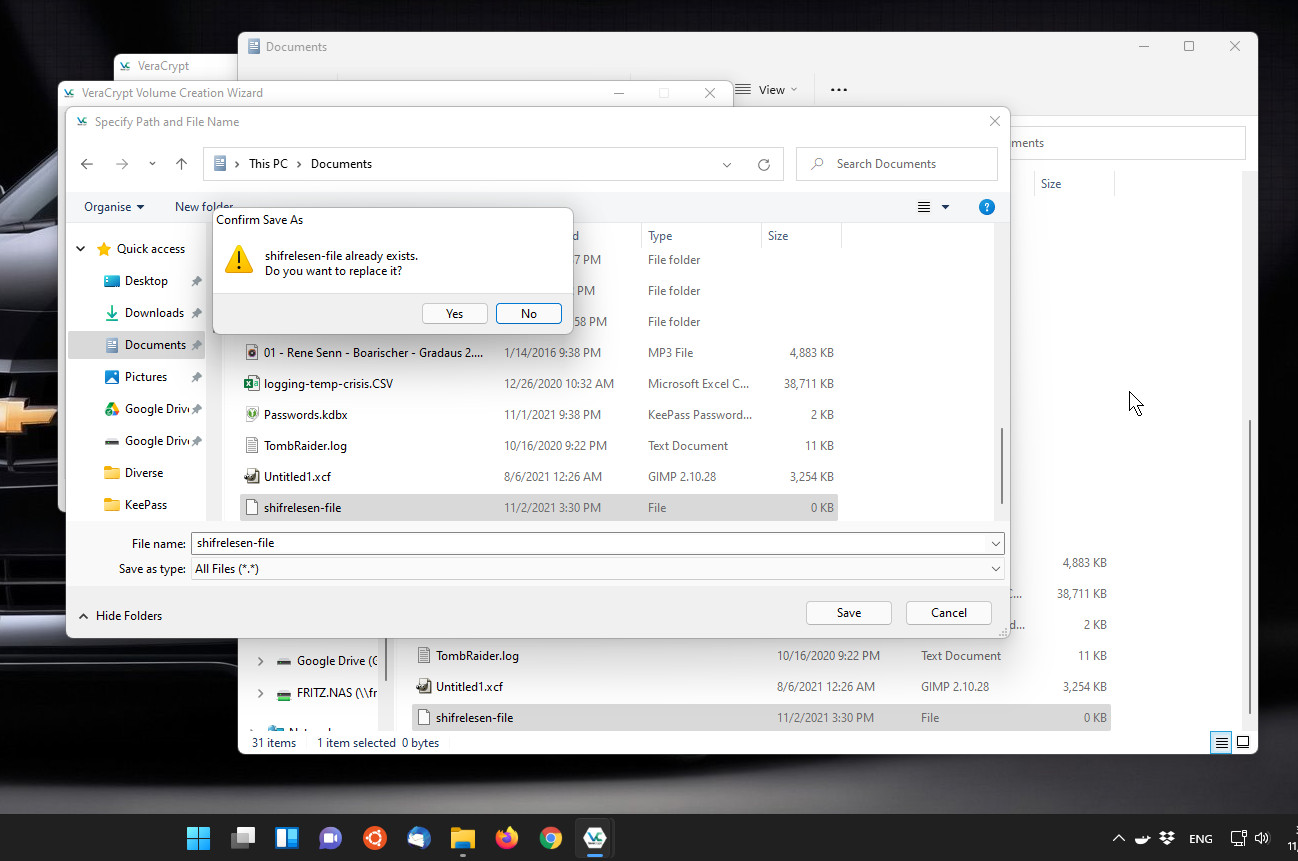
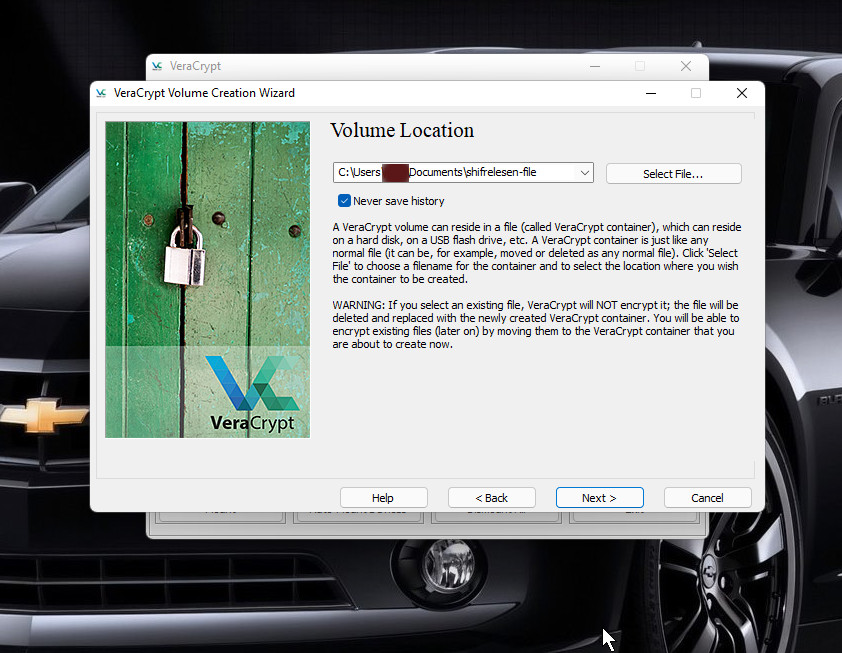
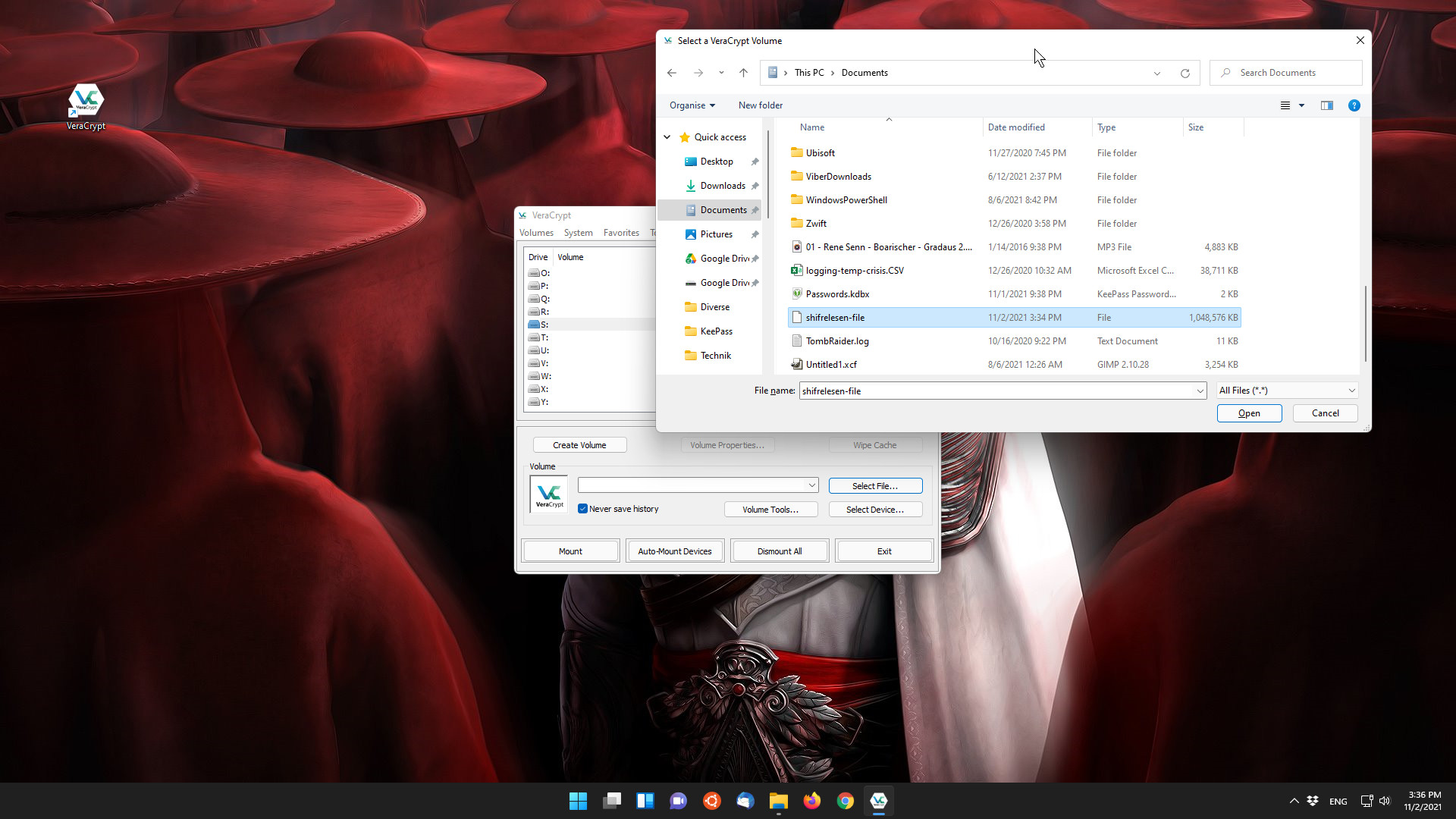
- Choose where to attach
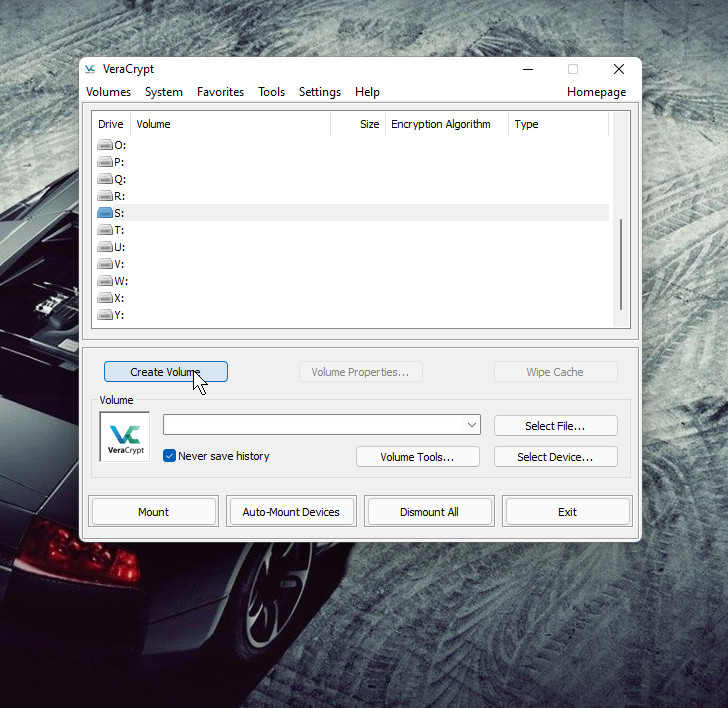
- Create an empty file without extension anywhere you like
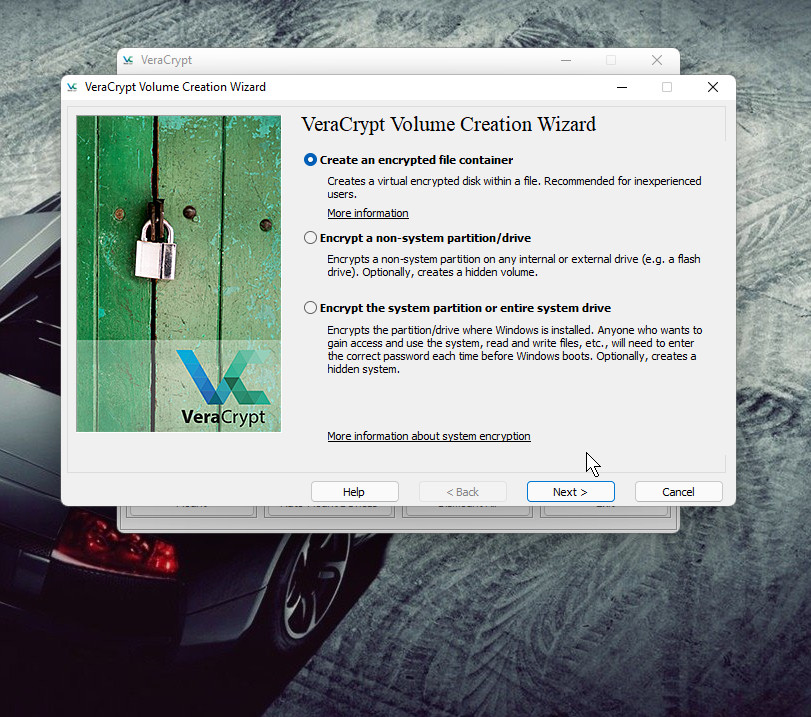
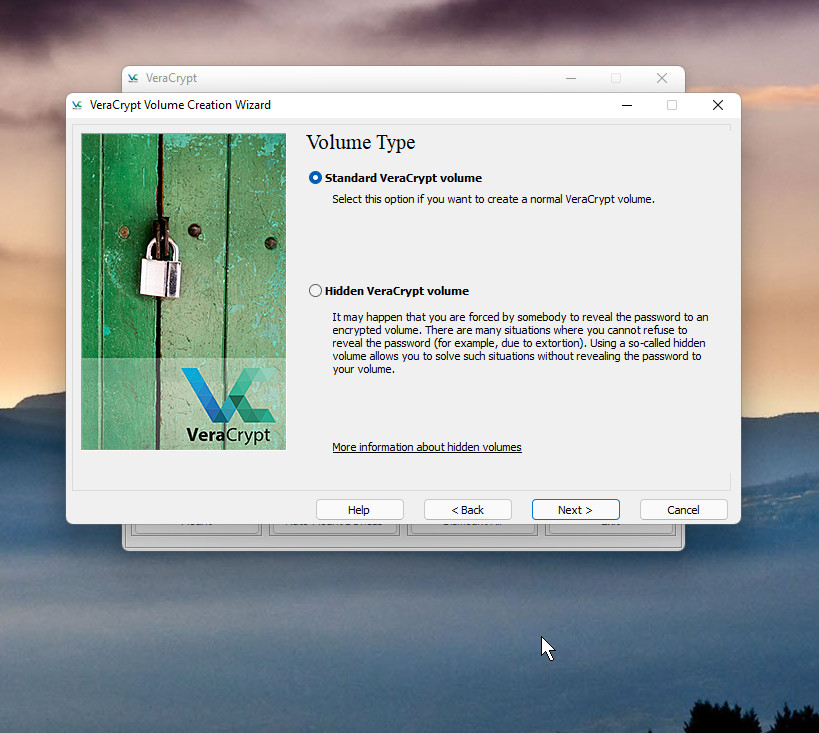
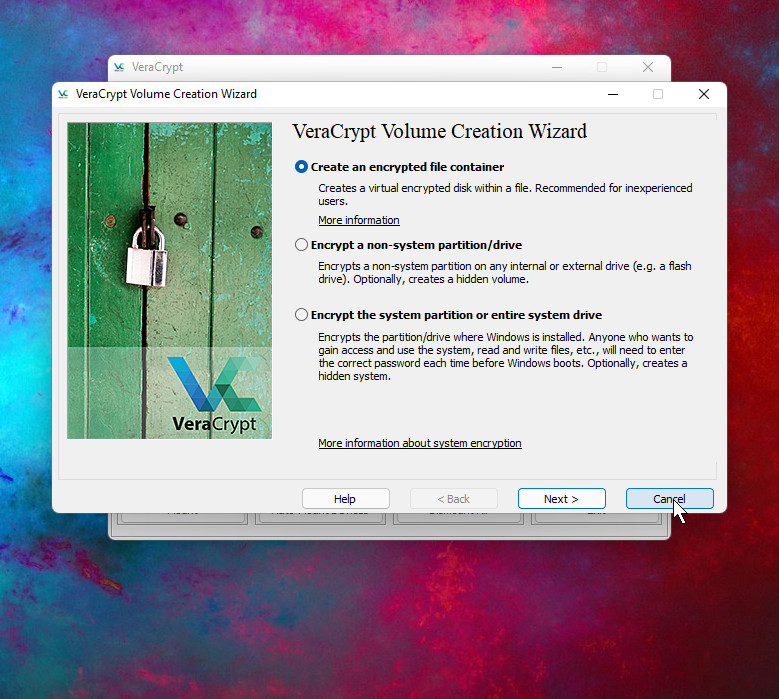
- Select and create an encrypted folder to store the created files
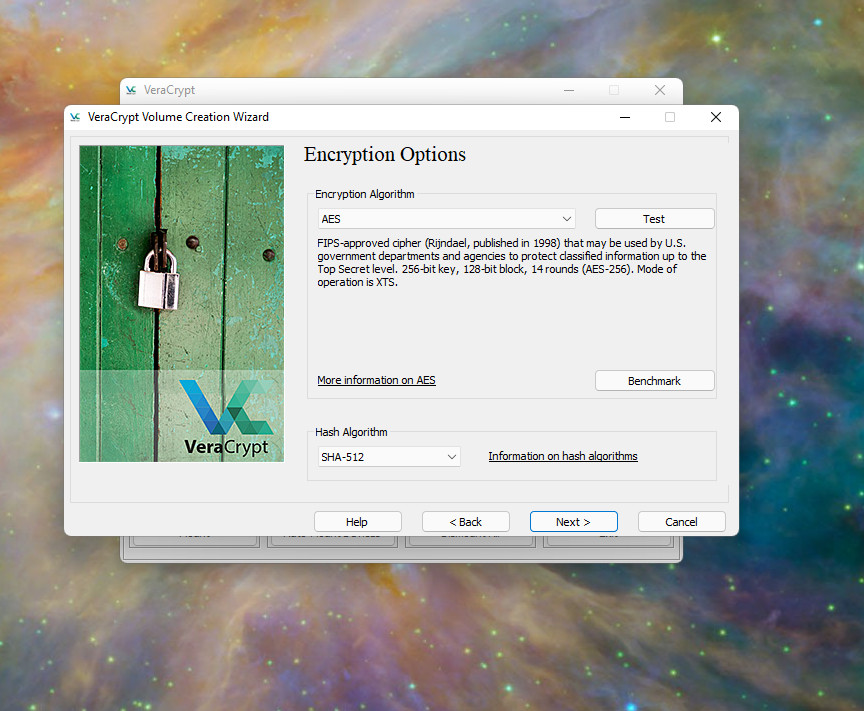
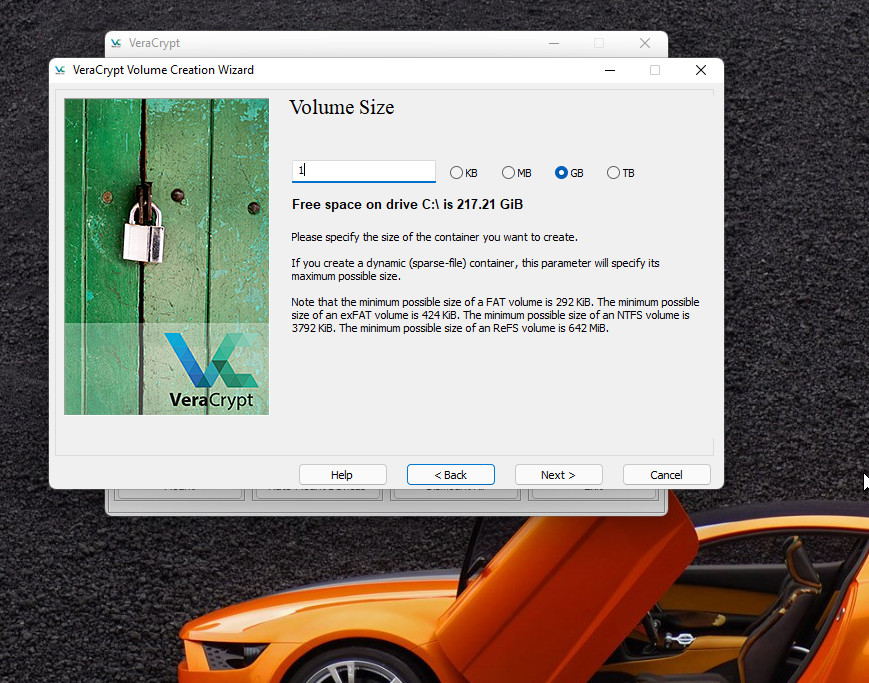
- Choose encryption type and folder size
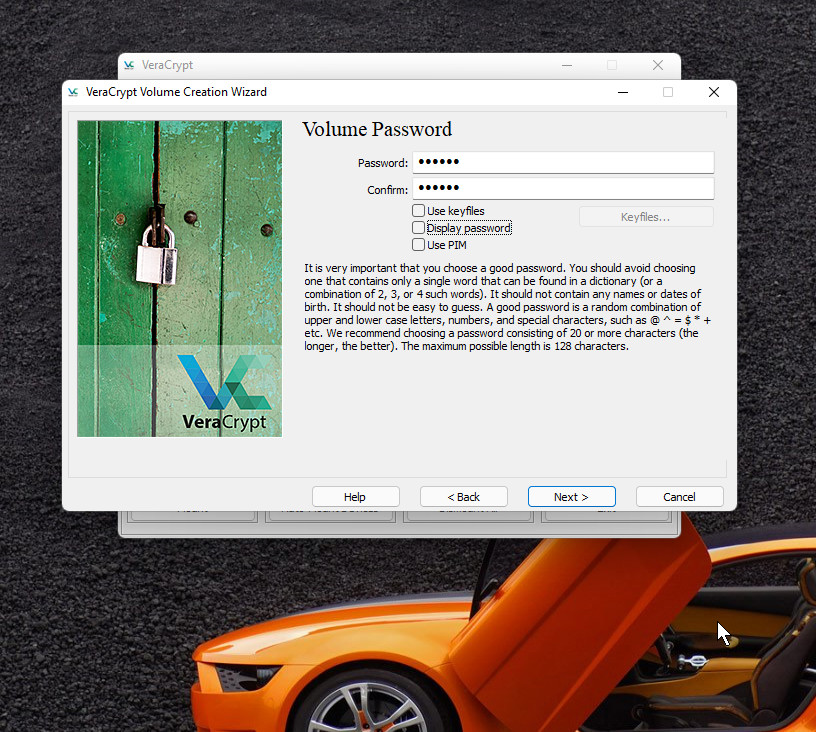
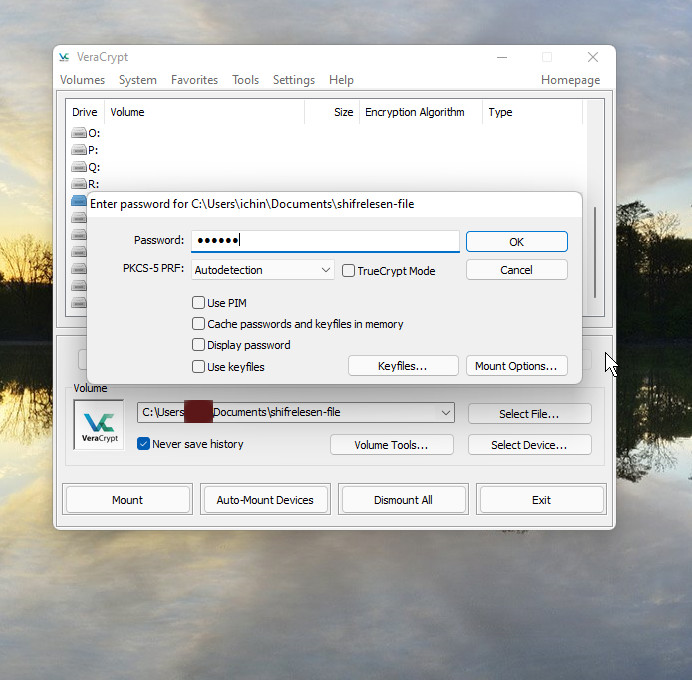
- Enter the password in the encrypted folder
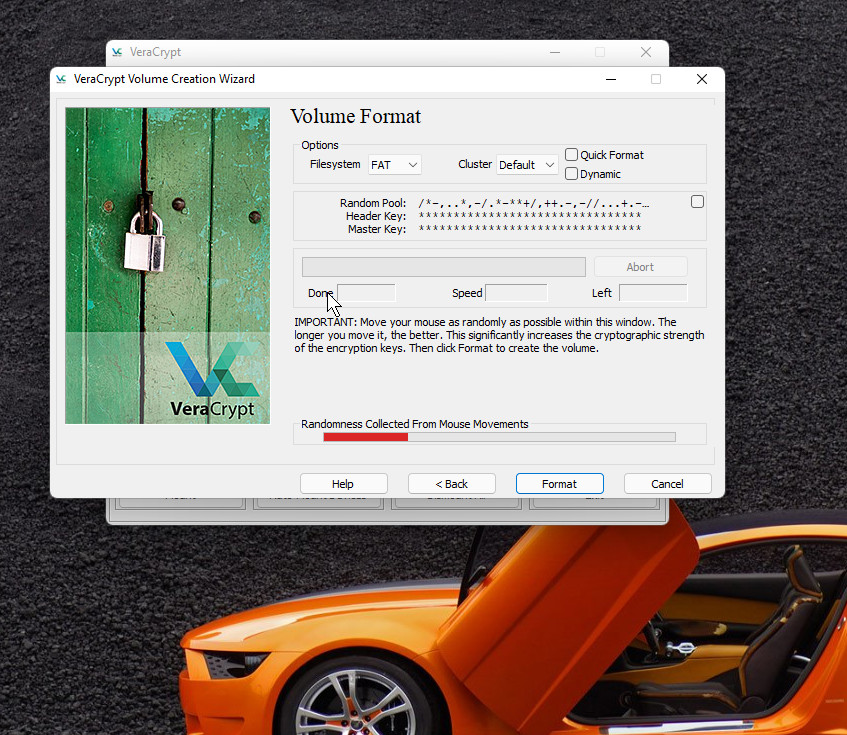
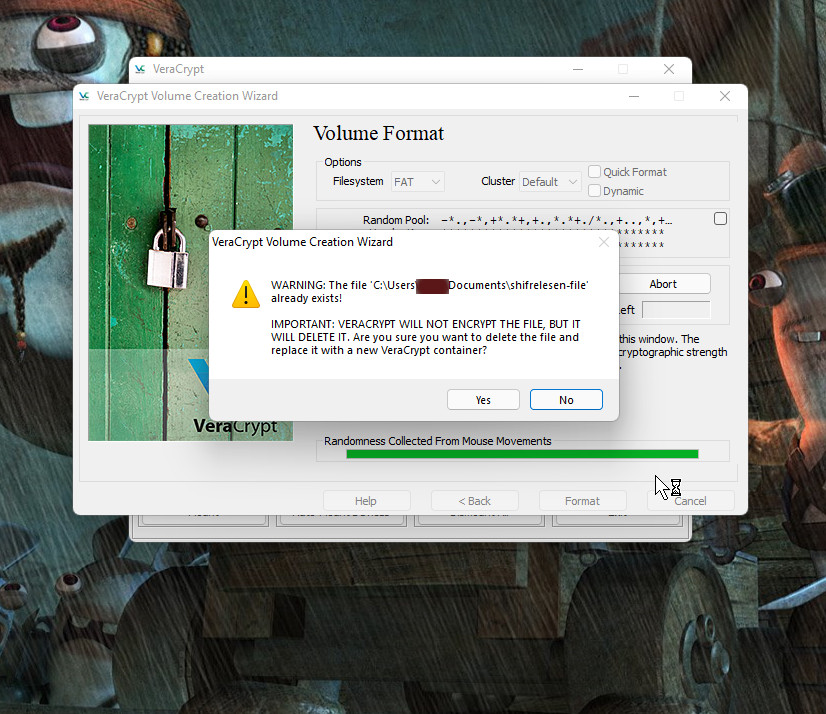
- Create encryption as a random option with mouse movement
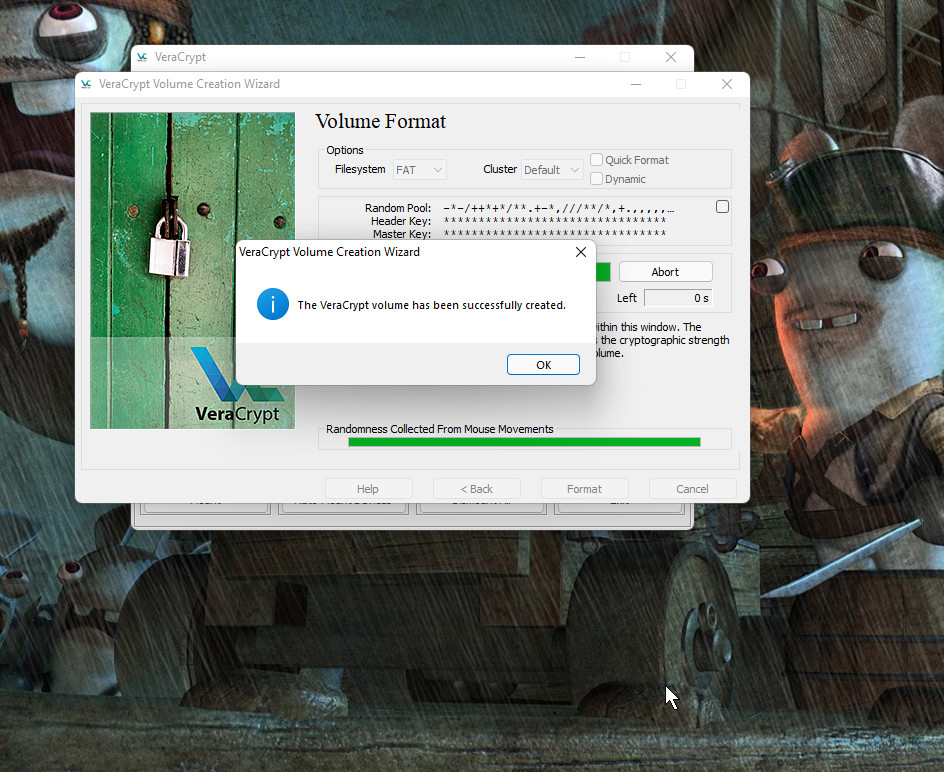
- Complete creation of encrypted folder
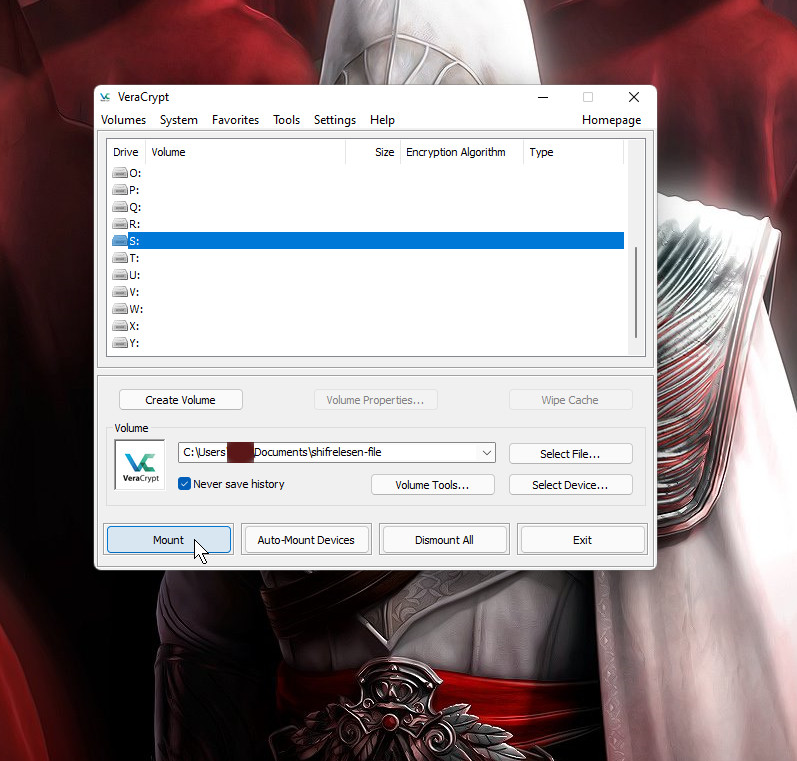
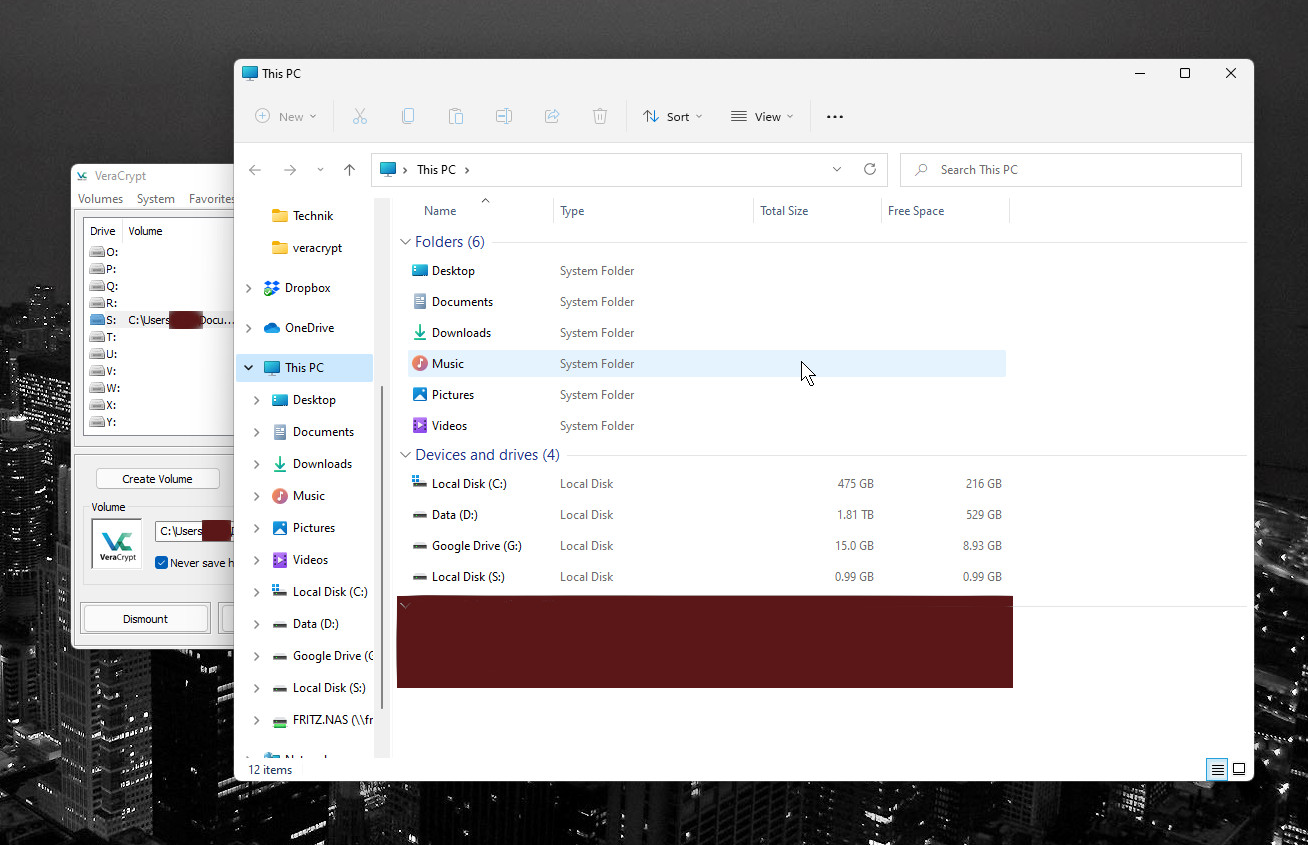
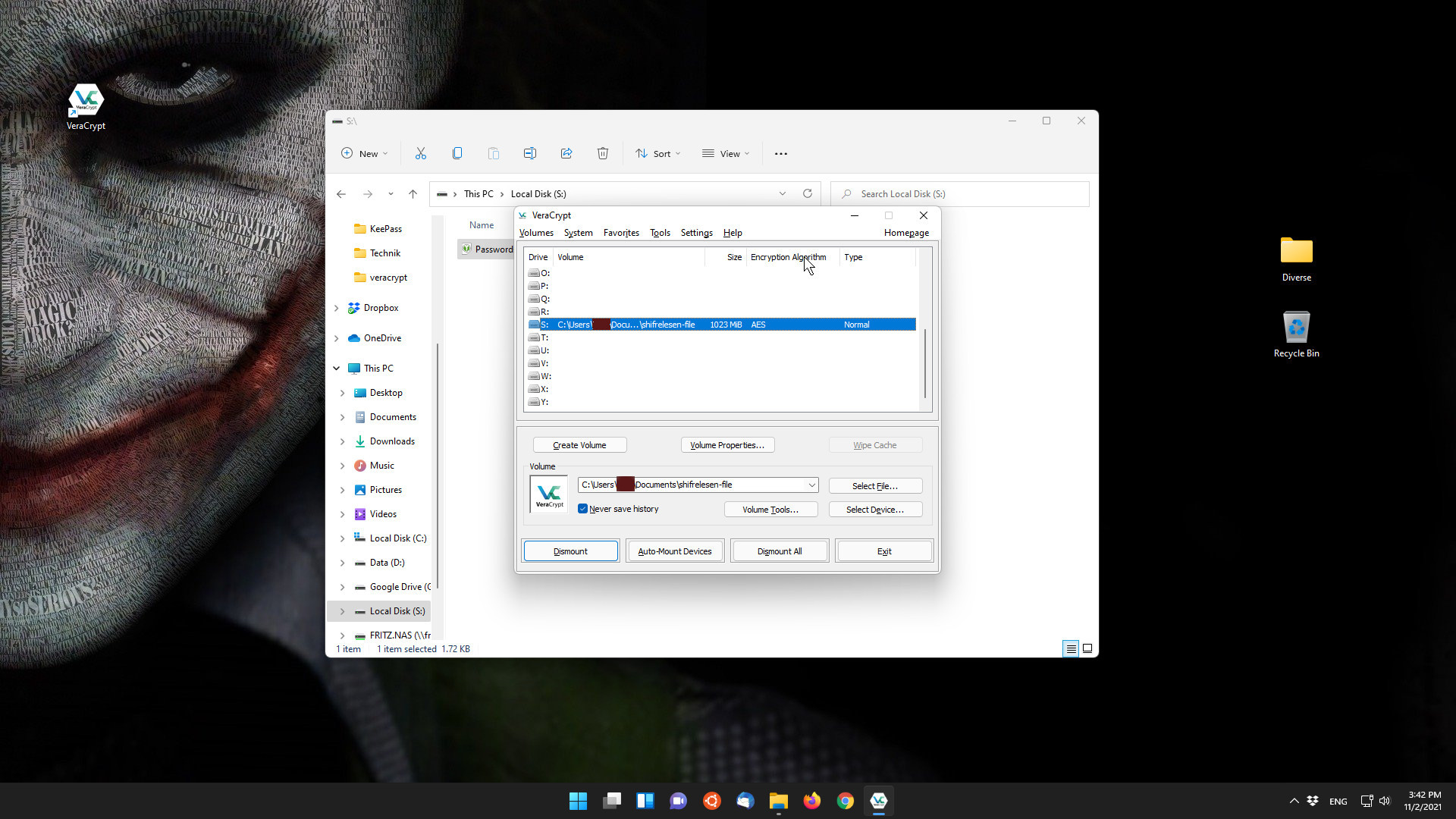
- Attach the created folder encryption to the reporting system
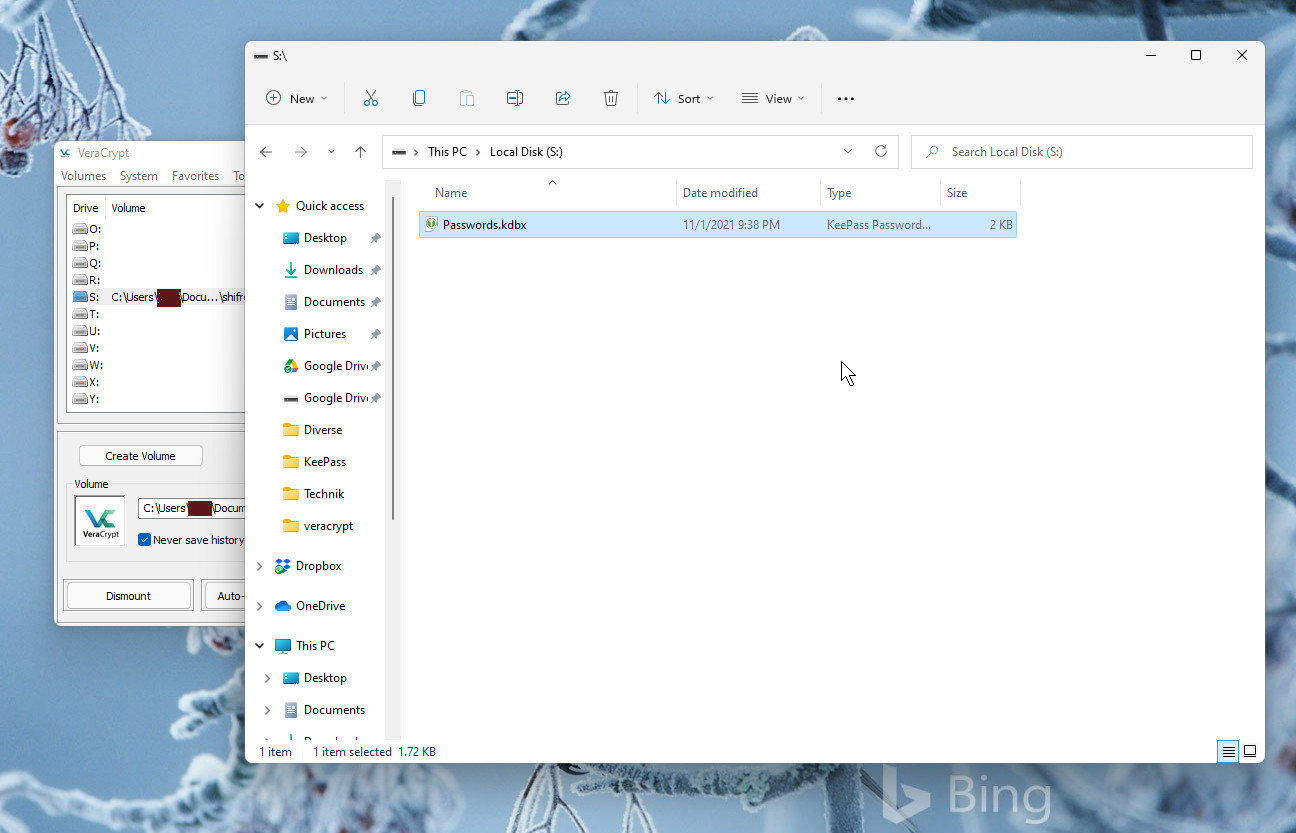
- Put your password database in your encrypted folder
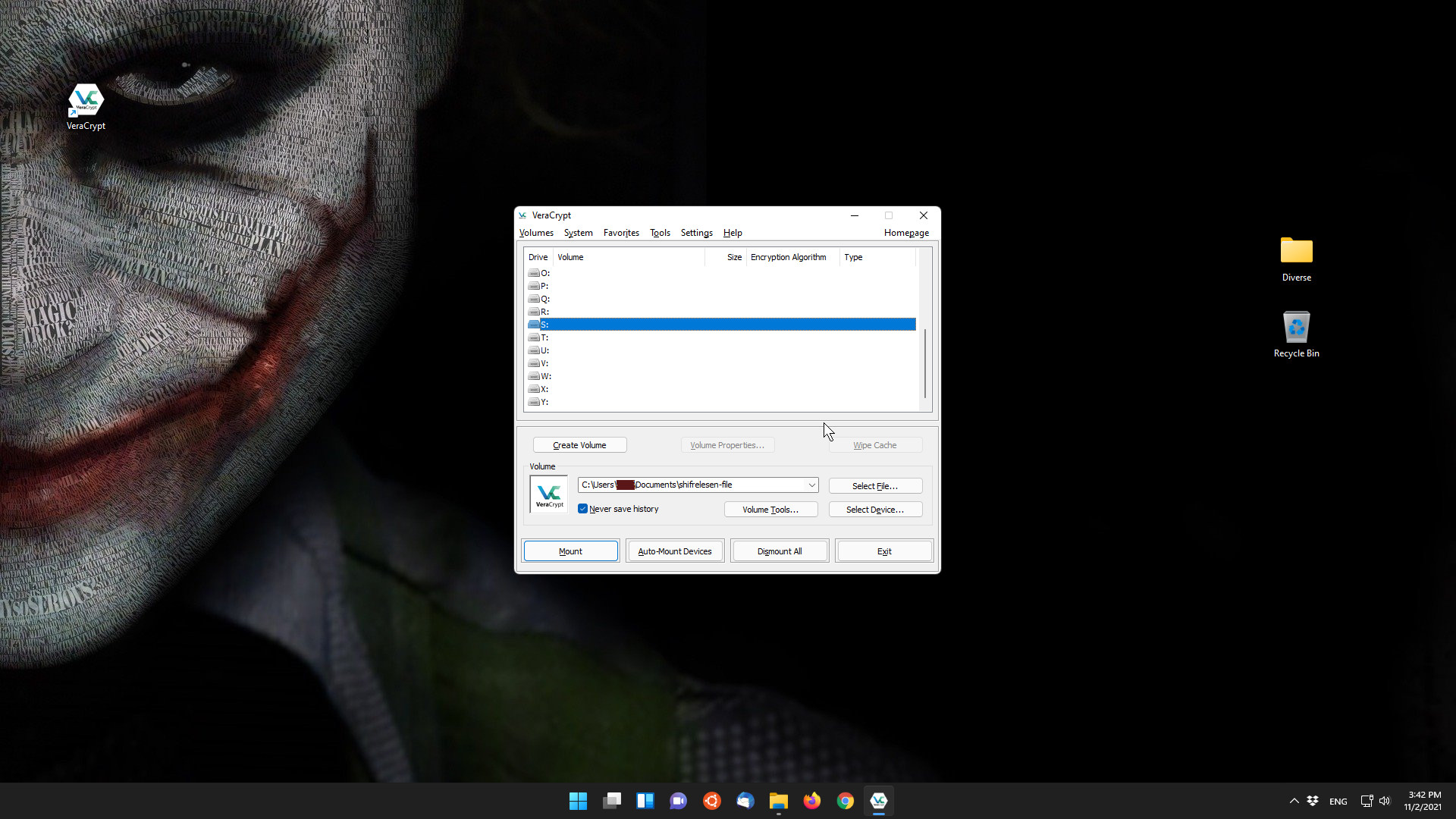
- Learn to remove and close your encrypted folder when you're done using it!
Conclusion
The portable version of VeraCrypt can now be taken anywhere by copying the encrypted folder to a USB-Stick. In doing so, we've also introduced another important application that can be used on multiple systems, like KeePassXC. Your data may not be private or important to you, but consider simple safeguards like these for your family, work, and community, and it's a big step in the public interest.
Well, anyway, we now have 50% protection against common hackers and data thieves. The other 50% can be done by keeping your system up-to-date and with an Anti-Virus program. Of course you may already know it, so pass it on. It is hoped that the more people know such easy knowledge, the higher the level of knowledge will be.
Oh, yes, you will have to spend a little more time on the Windows keyboard configuration issue. The first one was 6-7 years ago (maybe even before that, it was uploaded to GitHUB in 2018 anyway) and before publishing it I also gave myself a couple of homeworks, like checking if new technologies came out in the year, haha.